
Switching Browsers and Email Clients Made Easy
Apple’s macOS offers a variety of built-in applications for daily tasks, such as Safari for web browsing and Mail for email management. However, many users prefer third-party applications for specific functions. Fortunately, macOS allows users to easily switch their default apps to suit their preferences.
Latest news
 Corsair Vengeance DDR5-6000 Kit Offers Ideal Speed for AMD Builds
 Hide.me VPN releases major Android update
 Hackers launch massive PHP2Shell attack wave
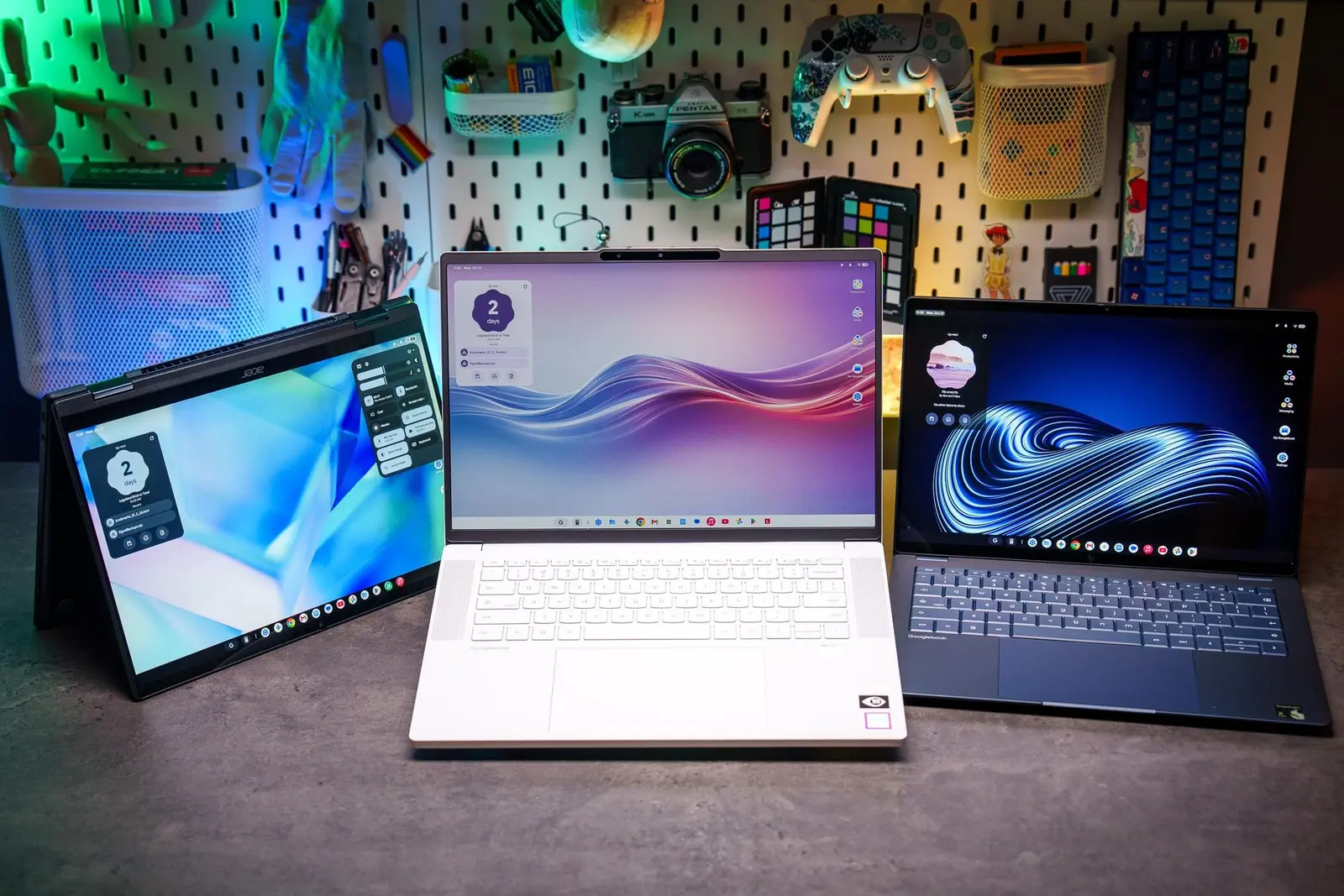 Googlebooks are not yet ready for prime time
Customizing default applications can enhance user experience. For instance, you might want to use Google Chrome instead of Safari for browsing or opt for Microsoft Outlook over Apple Mail for email. Changing these settings is straightforward and can be done through the system preferences.
Why Change Default Apps on a Mac?
To change your default web browser, go to the Apple menu and select System Preferences. From there, click on Generaland find the Default web browseroption. A dropdown menu will appear, allowing you to choose your preferred browser. Similarly, for email, navigate to Mailin the same preferences section and select your desired email client under Default email reader. This process is not limited to web browsers and email applications. You can also set default apps for specific file types. For example, if you want to open PDF files with Adobe Acrobat instead of Preview, right-click on a PDF file, select Get Info,and under Open with,choose Adobe Acrobat from the dropdown. Then, click Change Allto apply this setting to all PDF files.
Users often seek different applications for various reasons. Some may find third-party apps offer better features or a more user-friendly interface. For instance, many users prefer the functionality of apps like VLC Media Player for video playback or Evernote for note-taking. Customizing default apps can streamline your workflow and improve productivity.
Moreover, changing default apps can also enhance security. Some third-party applications provide better privacy features or more robust security measures than their built-in counterparts. By selecting the apps that best fit your needs, you can create a more secure and efficient computing environment.
What Happens When You Change Default Apps?
When you change the default applications on your Mac, it can significantly alter how you interact with files and services. Users may find it easier to access tools they are more familiar with, enhancing their overall experience. However, switching apps can also lead to a learning curve as you adapt to new features and interfaces.
In the long run, customizing your Mac’s default apps can lead to a more personalized and efficient user experience. Embracing third-party applications can help you tailor your computing environment to better suit your specific needs and preferences.
How do I change the default app for a specific file type? Right-click on the file, select Get Info,and under Open with,choose your desired application. Click Change Allto apply it to all files of that type.
Frequently Asked Questions
Can I revert back to the original default apps? Yes, you can always return to the original default applications by following the same steps and selecting the original app from the dropdown menu.
Are third-party apps safe to use on a Mac? Many third-party apps are safe, but it’s essential to download them from reputable sources. Always check reviews and ratings before installation.
Comments
Leave a comment