These tools show which channels are heavily used by nearby networks and
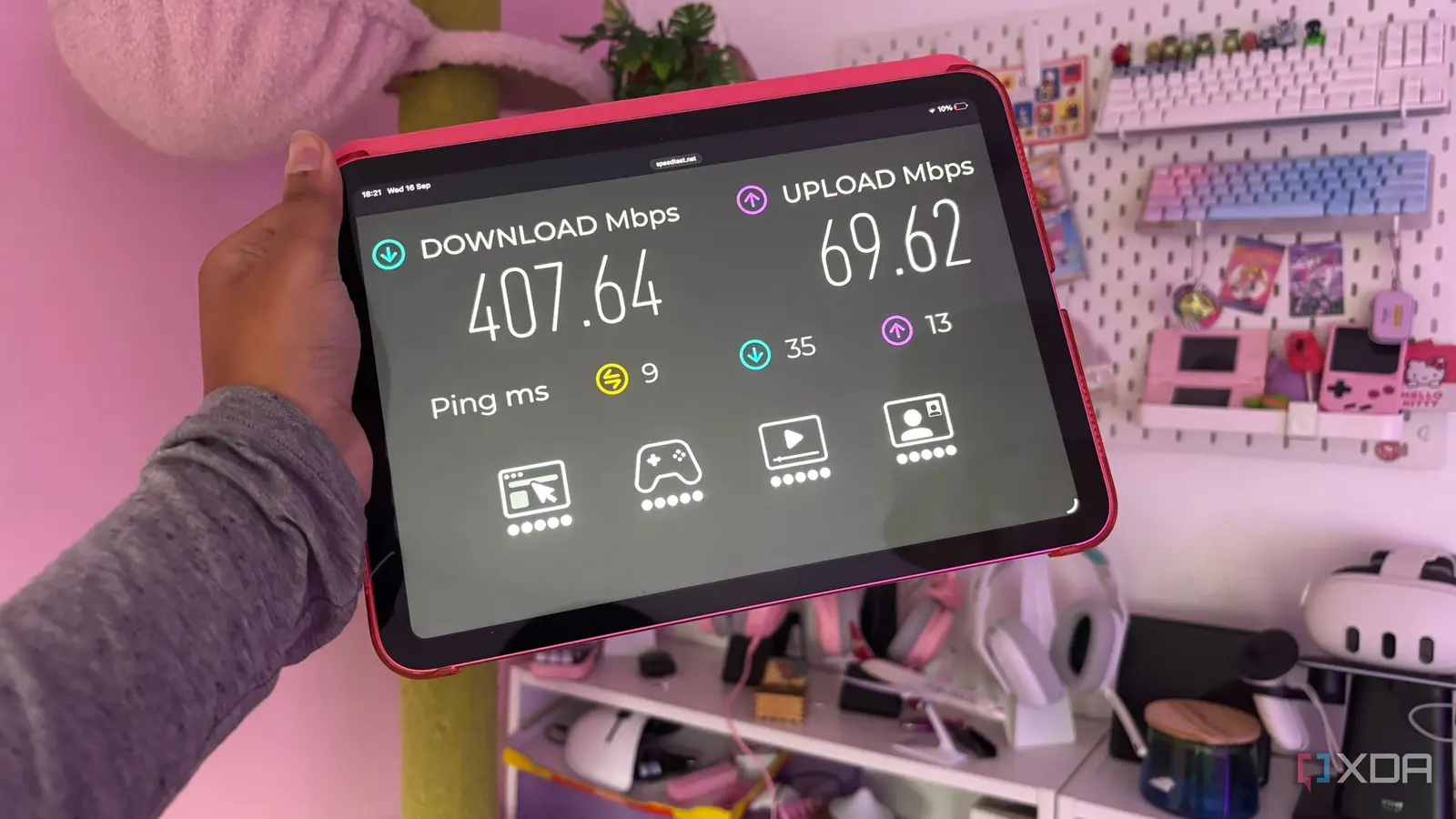
Changing a single Wi-Fi channel setting on your home router can instantly improve 5GHz network performance, with some users reporting doubled speeds after making the adjustment. This quick fix requires no new hardware and takes less than a minute to complete, offering immediate benefits for streaming, gaming, and video calls without upgrading your internet plan. Many users unknowingly operate on congested Wi-Fi channels, especially in densely populated areas like apartments or office buildings where multiple networks overlap. The 5GHz band offers more channels than 2.4GHz, but interference from neighboring networks can still degrade performance. By switching to a less crowded channel, routers can transmit data more efficiently, reducing lag and increasing throughput. How to Find the Best Wi-Fi Channel for Your Network To identify the optimal channel, users can employ free Wi-Fi analyzer apps available on smartphones or laptops, which display channel usage and signal strength in real time.
Latest news
 Anker Unveils Playful 45W Charger With Animated Face Display
 Google Docs Web Version Still Missing Native Dark Mode
 Anthropic-Linked Vulnerability Exploited From China, Targets US and Japan
 Text‑Based AI Agents: Your New Digital Assistants
These tools show which channels are heavily used by nearby networks and recommend clearer alternatives. Once identified, accessing the router’s admin panel—typically via a web browser using the router’s IP address—allows manual selection of the recommended channel under wireless settings. After applying the change, devices may need to reconnect to the Wi-Fi network to recognize the new channel. Speed tests conducted before and after the adjustment often reveal significant improvements, particularly in environments with high network density. Experts note that while results vary, avoiding channels 36, 40, 44, and 48—commonly used by default—can yield better outcomes in urban settings. Is This Fix Permanent or Will I Need to Repeat It? The channel setting remains in effect until changed again or until the router is reset, but environmental changes—such as new neighbors setting up networks or shifts in device usage—can reintroduce congestion over time.
Periodically rechecking channel usage with an analyzer app ensures sustained
Periodically rechecking channel usage with an analyzer app ensures sustained performance. Some modern routers offer automatic channel selection, though manual override often provides more control and better results in challenging environments. Improving Wi-Fi performance through channel optimization is a low-effort, high-impact step that many overlook. As home networks grow more demanding with smart devices, 4K streaming, and remote work, maximizing existing infrastructure becomes increasingly valuable. Users are encouraged to treat channel selection as part of routine network maintenance, similar to updating firmware or repositioning the router for better signal coverage. Frequently Asked Questions Will changing my Wi-Fi channel affect my internet speed from the provider? No, this adjustment only optimizes how your devices communicate with your router over the local network. Your actual internet speed from your ISP remains unchanged, but you may experience faster downloads and smoother streaming due to reduced local network interference.
Do I need to change the channel on both 2.4GHz and 5GHz bands? It’s most beneficial to focus on the 5GHz band, which is more prone to interference in crowded areas and offers greater speed potential. The 2.4GHz band has fewer non-overlapping channels and is better suited for longer range, so manual channel selection there is less impactful. Can I do this on any router, or do I need a specific model? Most modern routers from major manufacturers like Netgear, TP-Link, Asus, and others allow manual channel selection in their admin settings. The process varies slightly by brand, but the option is typically found under wireless or advanced settings in the router’s configuration page.
Comments
Leave a comment