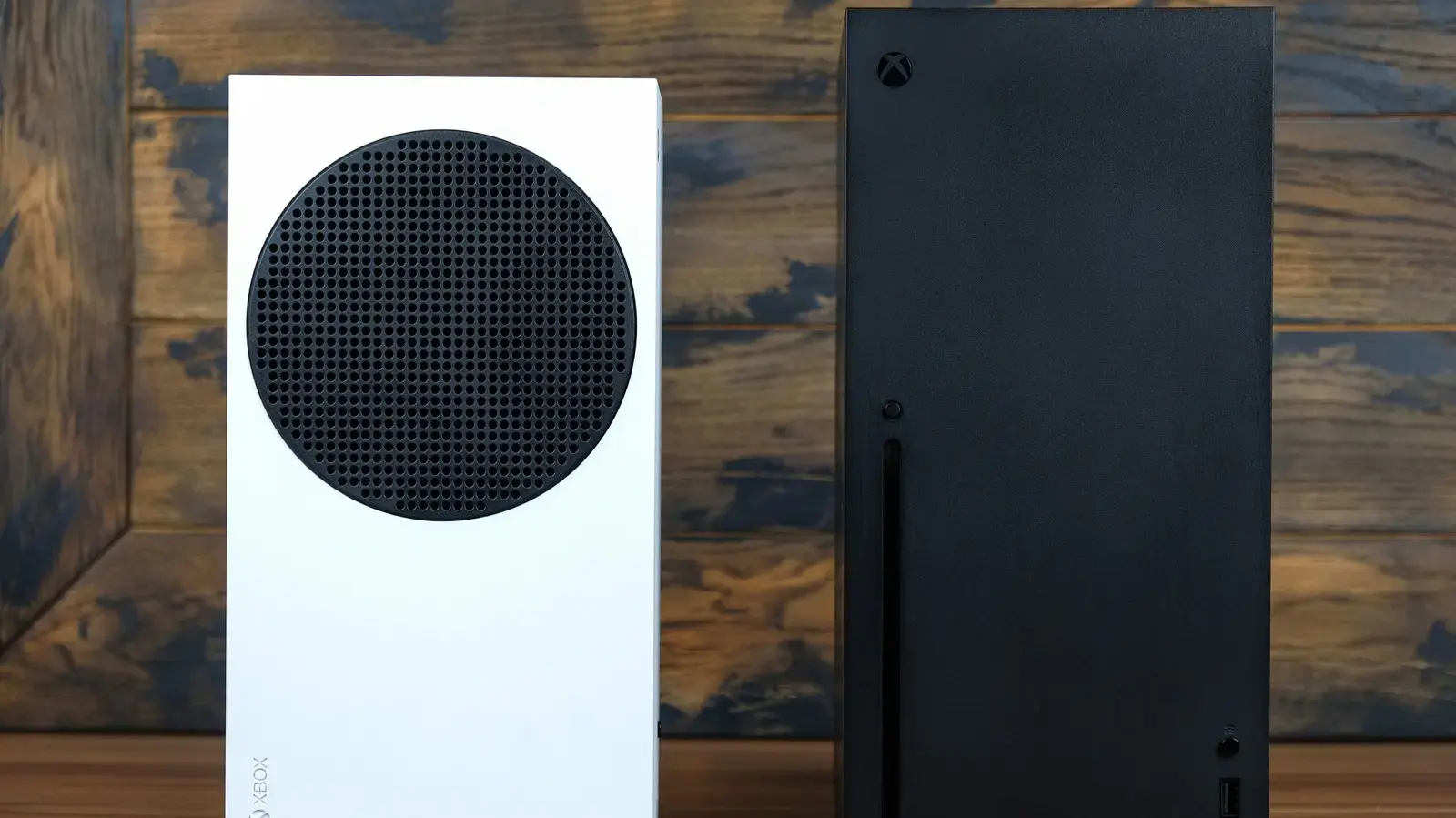
Configuring Audio Output for Maximum Immersion
Xbox consoles support immersive audio formats, including 5.1 and 7.1 channel surround sound. Gamers can enhance their experience without buying a new console. The setup process varies slightly depending on your television model. Modern displays simplify the connection, while older units require specific workarounds. This guide outlines the necessary steps to unlock full spatial audio capabilities for your gaming sessions.
Latest news
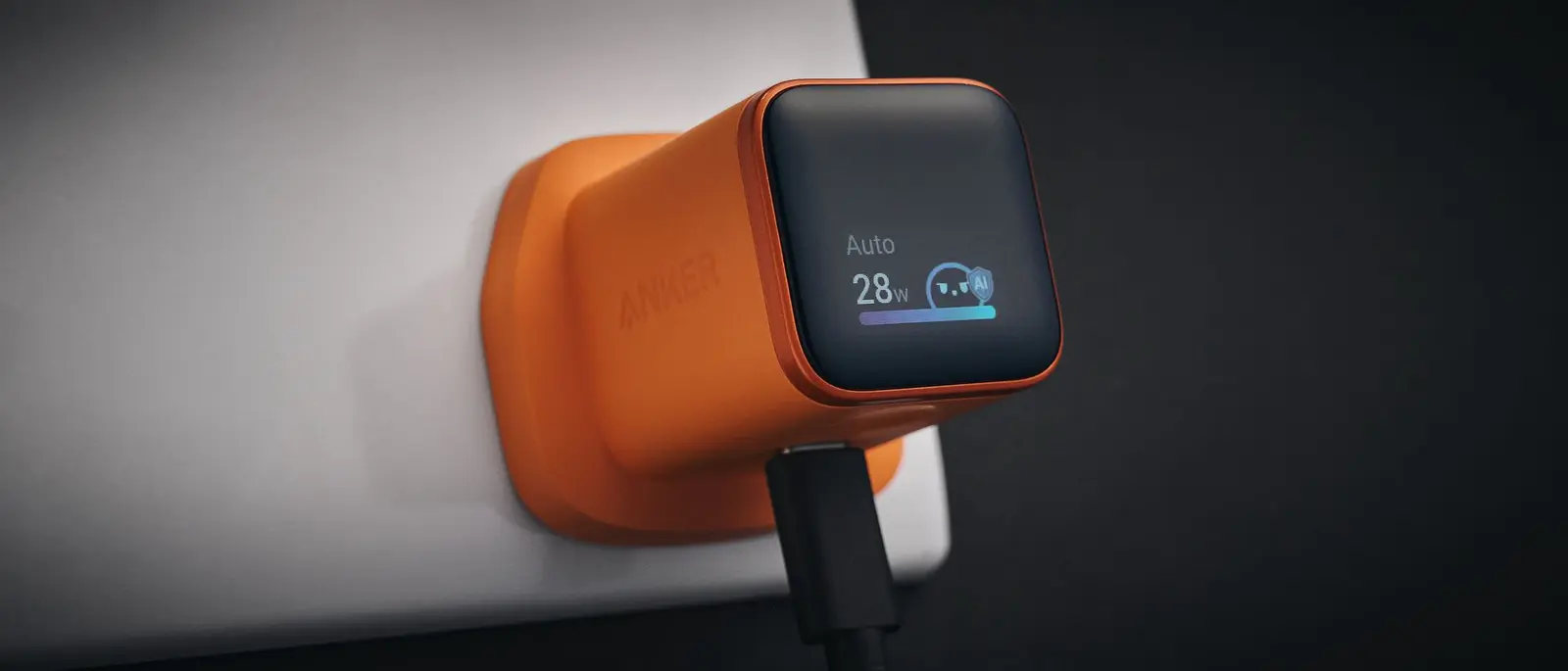 Anker Unveils Playful 45W Charger With Animated Face Display
 Google Docs Web Version Still Missing Native Dark Mode
 Anthropic-Linked Vulnerability Exploited From China, Targets US and Japan
 Text‑Based AI Agents: Your New Digital Assistants
The core requirement is a compatible receiver or soundbar. You must connect this device directly to your TV using an optical or HDMI cable. Once the hardware is linked, you need to adjust the audio settings within the Xbox interface. Navigate to the Settings menu and select Sound & Audio. Here, you will find options to configure the output format. Selecting the correct surround mode ensures that game audio channels are distributed properly across all speakers.
Proper configuration prevents common issues like silent rear speakers or distorted bass. Start by ensuring your TV is set to pass through Dolby Digital or DTS signals. Many modern TVs default to stereo, which strips away the extra channels. Change this setting in your TV’s audio menu before touching the Xbox. On the console side, verify that the audio output is set to Opticalor HDMIrather than TV. This distinction matters because some TVs process audio internally, potentially downmixing the signal. If you use an optical connection, be aware that it may limit you to 5.1 rather than 7.1. HDMI generally supports higher bandwidth and better codec compatibility.
Troubleshooting Common Connectivity Hiccups
Test your setup using a game known for rich soundscapes. Titles like Halo Infinite or Forza Horizon offer dynamic audio that highlights speaker placement. Walk around the room to check for balance. If one side sounds louder, adjust the speaker levels in your receiver’s manual setup mode. This calibration step is crucial for a cohesive listening experience.
Users often face challenges when integrating older hardware with newer consoles. If your TV lacks an optical port, you might need an HDMI ARC connection. Ensure your receiver supports HDMI ARC if you choose this route. Some older receivers do not handle this protocol well, leading to dropouts. In such cases, a direct HDMI input from the Xbox to the receiver is the most reliable method. This bypasses the TV entirely for audio processing.
Another frequent issue involves mismatched sample rates. If you hear crackling sounds, check if your receiver and Xbox are set to the same sample rate. Usually, 48 kHz is the standard for gaming consoles. Mismatches here cause digital artifacts that ruin the immersion. Restarting both devices after changing settings often resolves temporary glitches.
Frequently Asked Questions
Can I use Bluetooth speakers for 5.1 sound? Most standard Bluetooth speakers only support stereo output. To get true 5.1 surround, you need a dedicated receiver or a soundbar with wireless rear speakers. Bluetooth latency can also affect gameplay responsiveness.
Do I need a special cable for HDMI connections? Any high-speed HDMI cable works for 5.1 and 7.1 audio. You do not need expensive premiumcables unless you are running 4K video at high refresh rates. For audio alone, standard HDMI 1.4 or 2.0 cables are sufficient.
Will my old Xbox One support 7.1 audio? Yes, the Xbox One supports 7.1 surround sound. However, you need a receiver that decodes 7.1 channels. Most modern receivers handle this easily, but very old units might be limited to 5.1.
Comments
Leave a comment