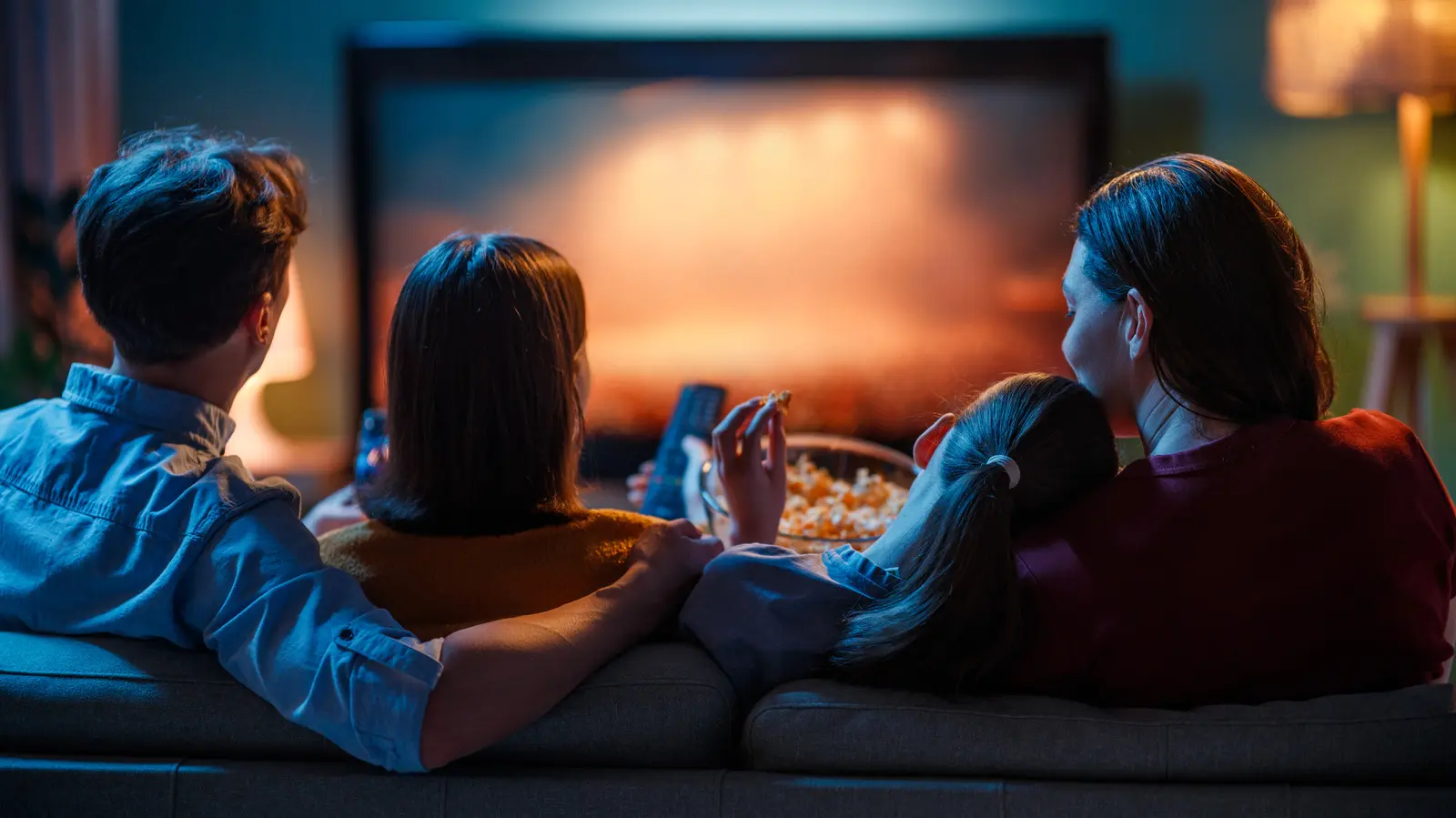
Checking Your TV for Hidden Lenses
Smart TV owners are increasingly worried about hidden cameras that could record their living rooms. While most new models lack built‑in lenses, a handful still ship with cameras for facial‑recognition or voice‑control features. Consumers can verify a camera’s presence by inspecting the bezel, checking the user manual, and exploring the TV’s settings menu. If a camera is found, it can usually be disabled through software options or by covering the lens.
Latest news
 AI Exploits Now Outpace Human Patching Speeds
 RAMBO: Leaking Secrets from Air-Gap Computers via Covert Radio Signals
 Bell sends wrong DST text to Ontario residents
 Big Tech Buybacks Plunge 83% as AI Spending Soars
Manufacturers such as Sony and older Samsung models have historically included cameras, though they are now rare. Sony’s Bravia line still supports a detachable „Bravia Cam” that can be attached for video calls. Samsung’s early „SmartThings” TVs offered a built‑in camera for gesture control, but newer releases have dropped the hardware. Because cameras are often tiny and placed near the top of the screen, they can be easy to miss. Privacy advocates recommend scanning the frame for pin‑hole lenses and reviewing the TV’s privacy policy, which should disclose any recording capabilities.
The first step is a visual inspection. Look for a small round or square opening at the top center of the screen, often no larger than a grain of rice. Some models hide the lens behind a decorative bezel or a black strip that blends with the frame. If you spot an aperture, consult the user guide; it will list the camera’s purpose and how to manage it.
Can You Trust the Manufacturer’s „Camera Off” Switch?
Next, dive into the TV’s menu. Most smart TVs have a „Privacy” or „Camera” section under Settings. Here you can toggle the camera off, revoke app permissions, or reset the device to factory defaults, which typically disables any active recording functions. In cases where the software does not provide a clear option, a firmware update may add the needed controls.
Some experts argue that software switches are not foolproof. „Even when a user disables the camera, the hardware remains active and could be re‑enabled by a malicious app,” says cybersecurity analyst Maya Patel. To guarantee privacy, many recommend physically covering the lens with a piece of opaque tape or a purpose‑made camera blocker. This simple step ensures no image can be captured, regardless of software bugs or firmware exploits.
The broader implication is a growing tension between convenience and privacy. As voice assistants and gesture controls become standard, more devices may embed cameras without clear disclosure. Consumers who value privacy must stay vigilant, regularly audit their devices, and demand transparent policies from manufacturers.
Frequently Asked Questions
Do all smart TVs have cameras? No. The majority of recent models are camera‑free, but a small subset, especially older or premium units, include them for specific features.
Will covering the camera affect TV performance? Physically covering the lens does not impact picture or sound quality. It only blocks visual input, leaving other functions untouched.
Can I permanently disable the camera through software? Some TVs allow a permanent disable via the settings menu or a factory reset. However, the safest method is to cover the lens, as software can sometimes be bypassed.
Comments
Leave a comment