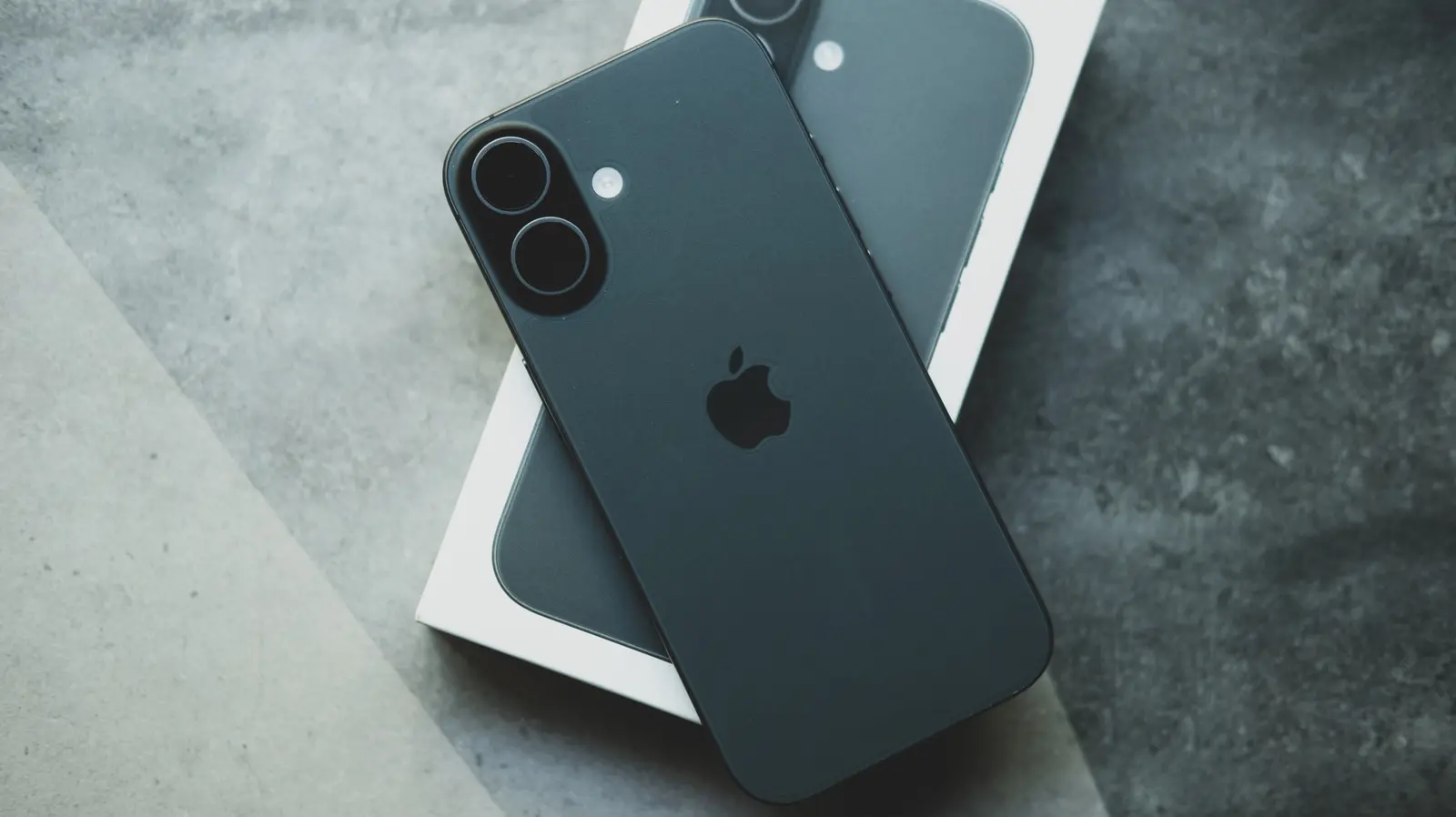
Why Manual Reset Is Necessary Despite Inconvenience
Resetting your i Phone camera settings to factory defaults is a straightforward process that requires manually adjusting numerous individual toggles within the Settings app. This method allows users to revert any customizations made to photo and video capture preferences without needing third-party tools or complex procedures. The process applies to all recent i Phone models running current versions of iOS and can be completed in a few minutes with careful navigation through the device’s settings menu.
Latest news
 Why the Rumored iPhone Duo Excites Android Foldable Fans
 AMD's Canceled Ryzen 9 5900X3D Leaks Online
 California Subpoenas OpenAI Over Autonomous AI Hacking Risks
 Nvidia-Backed UK Supercomputer Faces Multi-Year Power Delay
To begin, open the Settings app and scroll down to select Camera. Here, you will find a range of options including grid lines, format choices, preservation settings, and video recording preferences. Each setting must be tapped individually to return it to its original state—such as switching video format back to Most Compatible, disabling macro mode, or turning off smart HDR if previously enabled. Since there is no single „reset all” button for camera settings, users must methodically review each toggle, which can number over two dozen depending on the iOS version and device model. This manual approach ensures that only camera-related preferences are affected, leaving other system settings intact.
What Happens If You Skip Resetting Certain Toggles?
Apple does not provide a one-tap reset option for camera settings, likely to prevent accidental loss of personalized configurations that users may have spent time optimizing. For instance, someone who regularly shoots in ProRAW or uses specific frame rates for video might not want those choices erased unintentionally. By requiring manual adjustment, the process is tedious but safe, ensuring users retain control over which preferences they restore. As noted by tech observers, this design reflects Apple’s broader philosophy of giving users granular control, even when it demands more effort. The absence of a bulk reset also means that settings like grid visibility or mirror front camera must be reconfigured one by one, reinforcing the need for a systematic approach.
Leaving certain camera settings unchanged after intending a full reset can lead to inconsistent photo behavior, such as unexpected aspect ratios, altered exposure defaults, or video files saved in less compatible formats. For example, if High Efficiency format remains enabled when you prefer JPEG compatibility, sharing images with older devices or software may cause issues. Similarly, leaving macro mode active on supported models could result in unintended close-up focusing during regular shots. These small oversights can accumulate, affecting the consistency of your photo library over time. Taking the extra minute to verify each setting helps ensure your i Phone behaves predictably every time you open the Camera app.
Is there a way to reset all camera settings at once using a hidden menu or shortcut? No, iOS does not include a hidden menu, shortcut, or Siri command to reset camera settings en masse. Users must manually adjust each option within Settings > Camera.
Frequently Asked Questions
Will resetting camera settings delete my photos or videos? No, this process only affects future capture settings. Existing photos and videos in your library remain unchanged and are not impacted by resetting camera preferences.
Do I need to restart my i Phone after resetting camera settings? No, changes take effect immediately. There is no requirement to reboot the device for the adjustments to apply to the Camera app.
Comments
Leave a comment