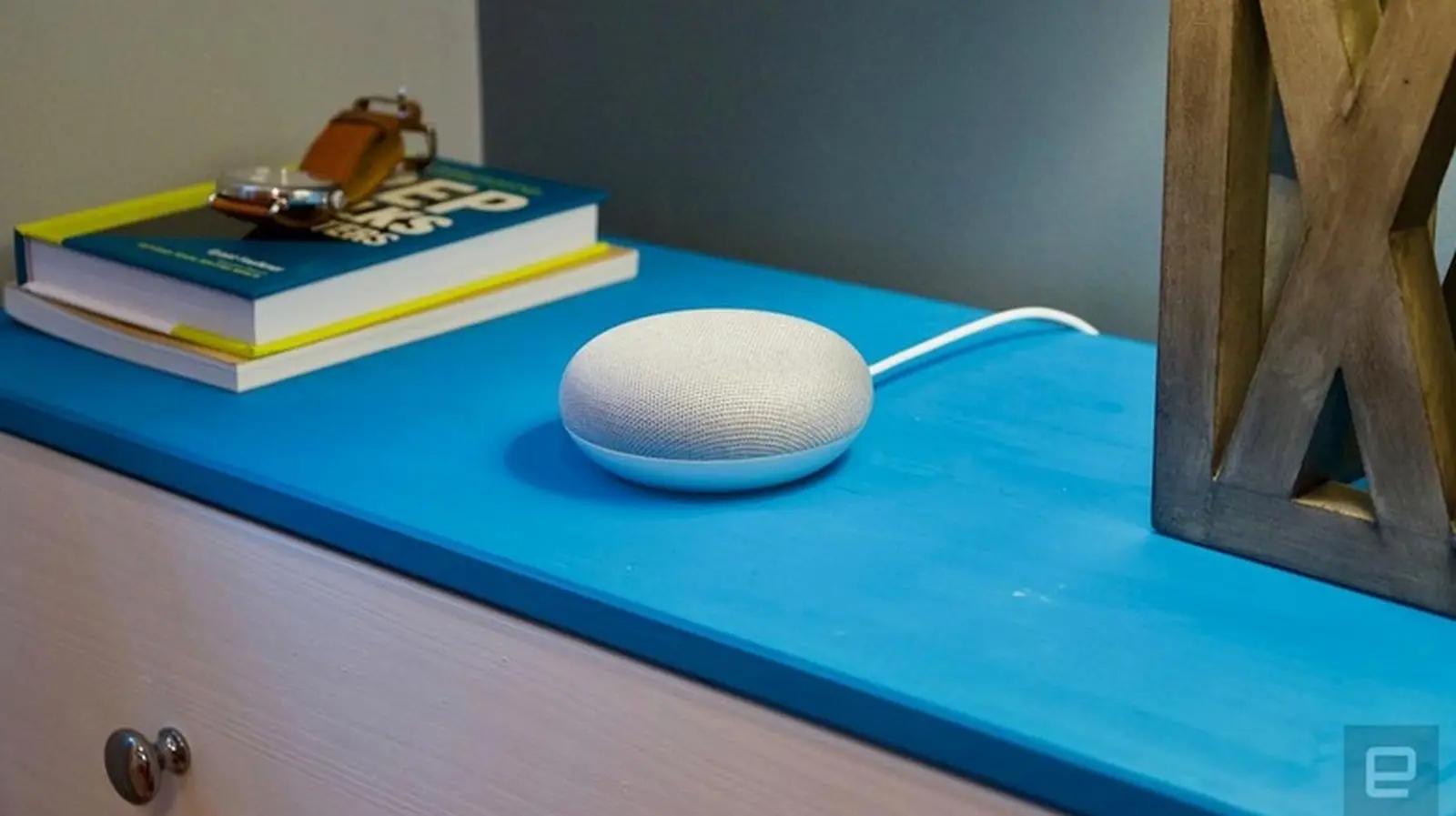
Why You Might Need a Factory Reset
When a Google Home Mini becomes unresponsive, loses Wi‑Fi connectivity, or you want to change the linked Google account, a factory reset is the simplest solution. It restores the device to its original state, clearing all settings and data.
Latest news
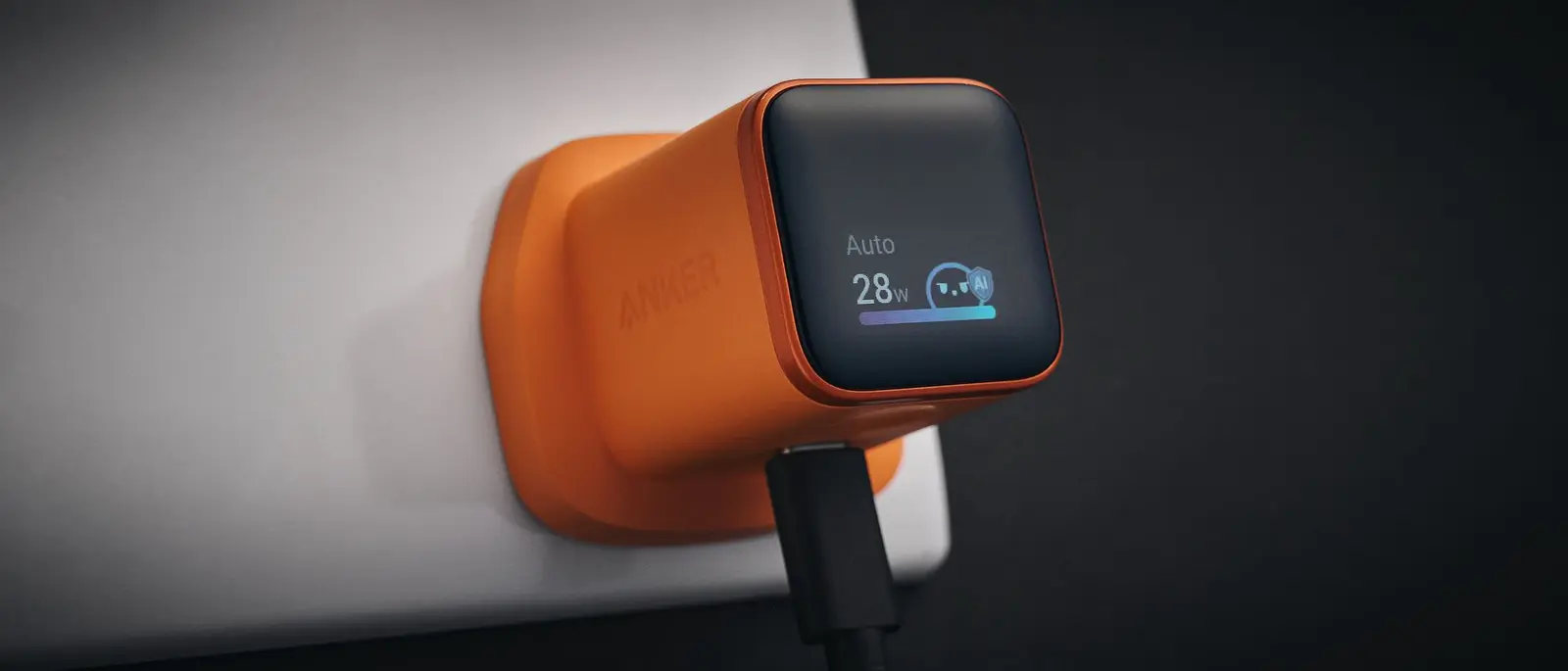 Anker Unveils Playful 45W Charger With Animated Face Display
 Google Docs Web Version Still Missing Native Dark Mode
 Anthropic-Linked Vulnerability Exploited From China, Targets US and Japan
 Text‑Based AI Agents: Your New Digital Assistants
Resetting the Original Google Home Mini
1. Flip the speaker over and locate the small reset button beneath the power cord on the bottom. 2. Press and hold the button for about five seconds until the device starts resetting. 3. Continue holding for another ten seconds until you hear a confirmation chime. The lights will flash to indicate the reset is complete.
Resetting the Google Nest Mini (2nd Generation)
The Nest Mini looks similar to the original, but the reset method differs. 1. Find the microphone on/off switch on the side of the device. 2. Turn the switch off; the LED lights will pulse orange. 3. Press and hold the reset button on the bottom for five seconds, then hold for an additional ten seconds until the confirmation chime sounds.
What Happens After the Reset?
Once the reset finishes, the Google Home Mini will reboot and return to its factory state. You’ll need to set it up again using the Google Home app, reconnecting to Wi‑Fi and re‑linking your Google account. All previous voice commands, routines, and personalized settings will be erased.
Additional Tips
• A factory reset cannot be performed via voice command or the app; it must be done manually. • Google will continue to support these devices with software updates and security patches even after production stops. • If you plan to give the device to someone else, a reset ensures their privacy and a clean start.
Comments
Leave a comment