Why Enterprise Hardware Still Wins
A decommissioned enterprise server card can deliver 10 Gbps to a home lab for a fraction of the price of new gear.
Latest news
 Anker Unveils Playful 45W Charger With Animated Face Display
 Google Docs Web Version Still Missing Native Dark Mode
 Anthropic-Linked Vulnerability Exploited From China, Targets US and Japan
 Text‑Based AI Agents: Your New Digital Assistants
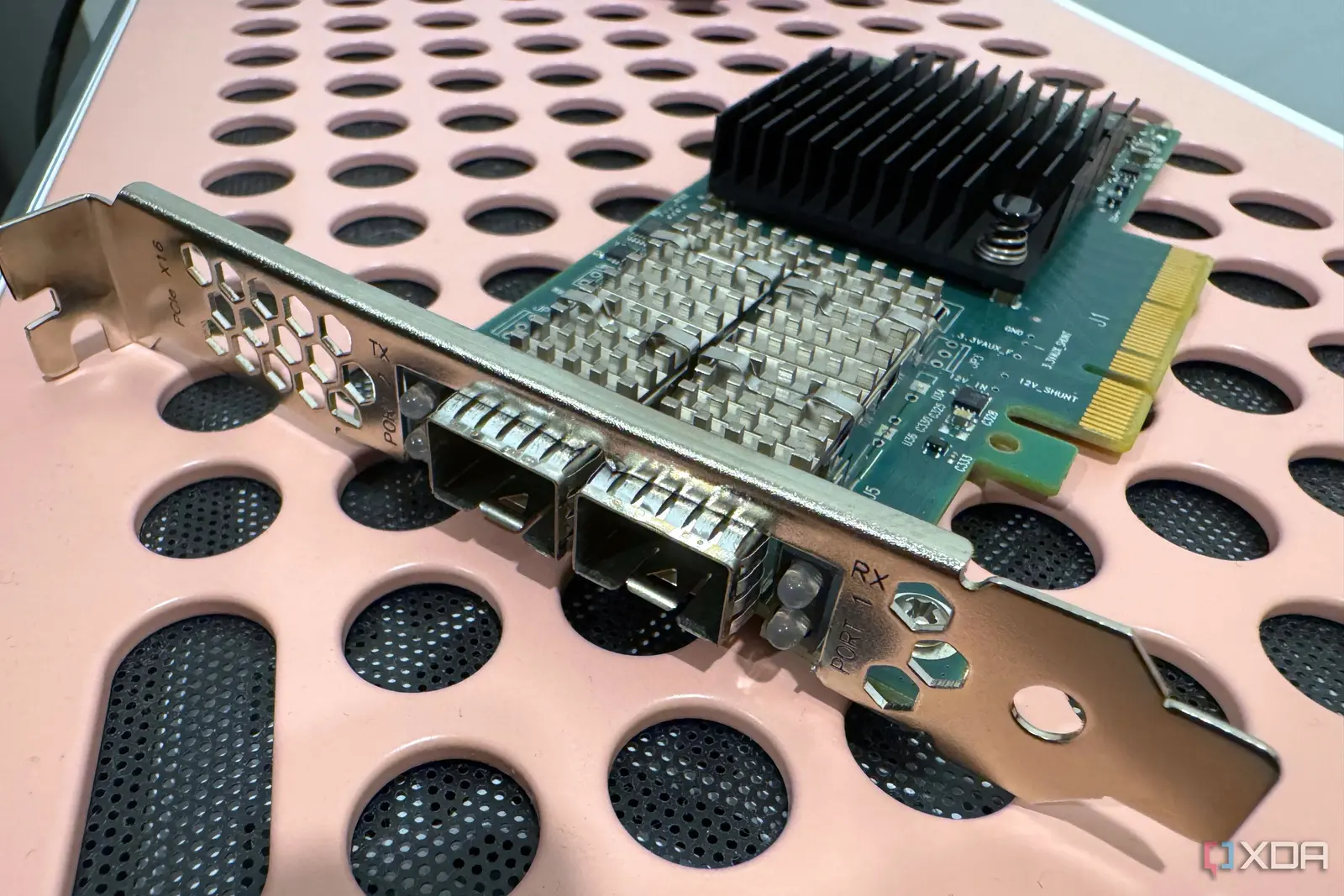
A 10‑Gigabit Ethernet card, originally installed in a retired data‑center server, was purchased for just $15. The buyer, a hobbyist network engineer, installed the card in a home PC and achieved 10 Gbps throughput, proving that old enterprise hardware remains a cost‑effective solution for home networking.
The card, a 10 GbE NIC from a now‑outdated server model, was sourced from an online marketplace that sells surplus IT equipment. After cleaning and testing, the card was installed in a standard desktop chassis. The user reported stable performance, with sustained transfer rates exceeding 9.5 Gbps over a single link. The low price point and the card’s proven reliability make it an attractive option for enthusiasts who need high‑speed connectivity without breaking the bank.
Enterprise network cards are built for continuous operation, high durability, and support for advanced features such as VLAN tagging and jumbo frames. These attributes translate directly into a home lab environment where users often run multiple virtual machines or media servers. Because the cards are designed to handle heavy traffic, they can maintain consistent speeds even under load.
How to Repurpose a Server Card
The $15 card also benefits from a mature driver ecosystem. The manufacturer’s Linux drivers are well‑maintained, ensuring compatibility with modern operating systems. Users can also leverage open‑source firmware updates to keep the hardware current. The result is a reliable, long‑term solution that outperforms many new consumer‑grade 10 GbE adapters that cost several hundred dollars.
First, locate a decommissioned server that still houses a 10 GbE NIC. These servers are often found in university labs or corporate IT closets. Once the card is removed, inspect it for any visible damage. Clean the connectors with isopropyl alcohol to remove dust and oxidation.
Next, install the card into a compatible motherboard. Most modern motherboards have PCIe slots that can accommodate the card, though some may require a PCIe 3.0 or 4.0 slot for optimal performance. After installation, boot the system and install the vendor’s drivers. Verify the link speed with a network utility; a successful 10 Gbps link indicates a proper setup.
Is This a Viable Long‑Term Solution?
If the card is not recognized, check BIOS settings to ensure the PCIe slot is enabled and that any legacy compatibility options are disabled. Once the card is detected, configure network settings, such as static IP or DHCP, and test throughput with tools like iperf or netperf.
The primary concern with repurposed server hardware is longevity. While the card itself is robust, the surrounding components—power supply, cooling, and motherboard—must also be capable of handling the increased data traffic. Users should monitor temperatures and power consumption to avoid overheating.
Another consideration is support. Enterprise vendors may no longer provide firmware updates for older models, but community support often fills the gap. Forums and open‑source projects maintain driver patches and troubleshooting guides.
Frequently Asked Questions
In the broader context, the trend toward affordable high‑speed networking is growing. New consumer adapters are becoming cheaper, yet they often lack the durability and feature set of legacy server cards. For hobbyists and small businesses, a $15 server NIC offers a compelling balance of cost, performance, and reliability.
Q1: Can I use this card in a Windows system? A1: Yes. The card’s drivers are available for Windows, though Linux support is more mature. Install the vendor’s Windows driver and configure the network settings as usual.
Q2: Will the card work with a standard home router? A2: The card requires a 10 GbE uplink. Most consumer routers do not support 10 Gbps, so you’ll need a compatible switch or a router that offers 10 GbE ports.
Q3: How do I ensure the card’s firmware is up to date? A3: Visit the vendor’s support site or community forums for the latest firmware releases. Use the provided tools to flash the firmware, following the manufacturer’s instructions carefully.
Comments
Leave a comment