Crafting Your First Automation
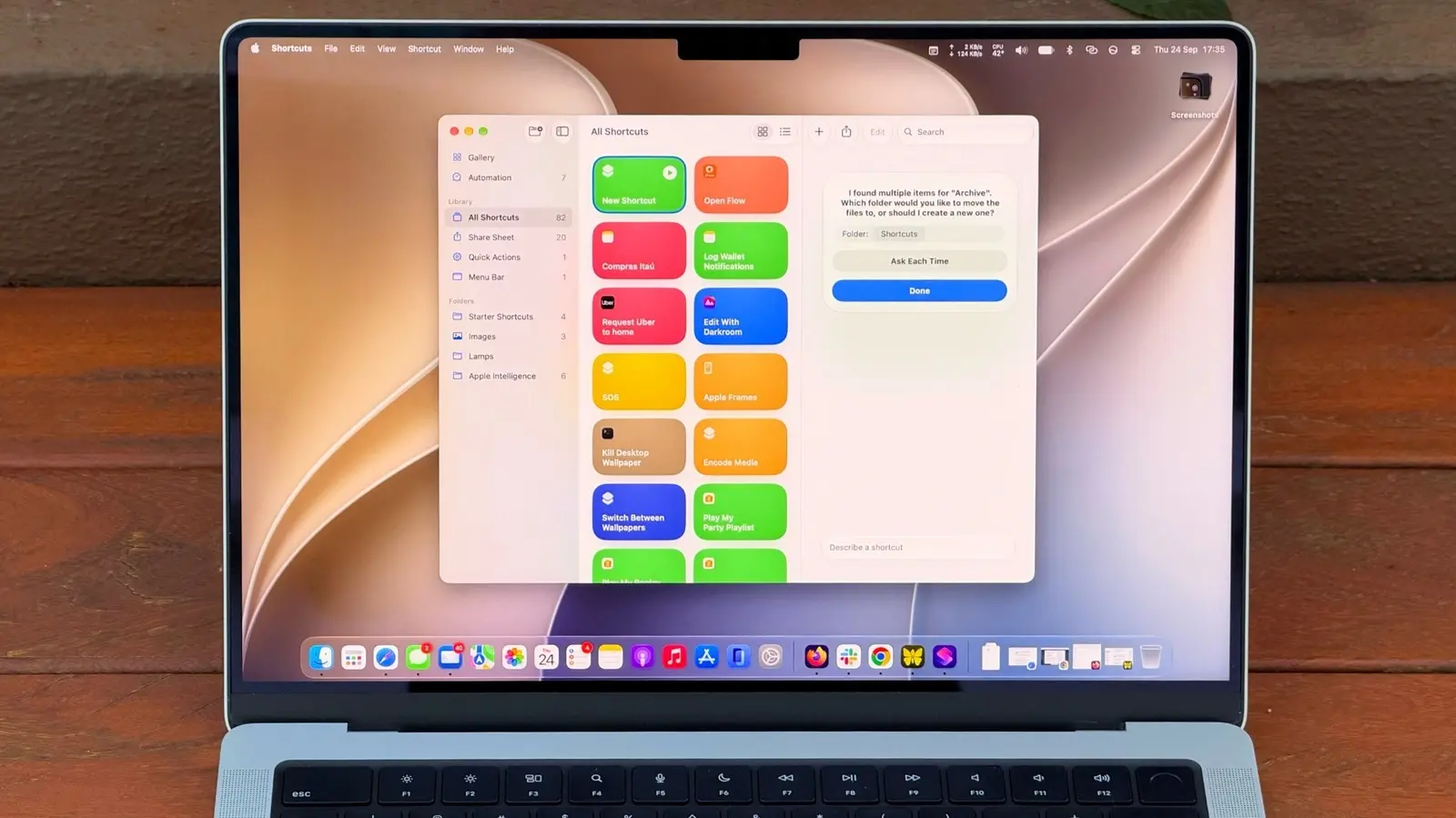
Apple’s Shortcuts app finally arrived on macOS, giving MacBook users a native way to automate repetitive tasks. The tool, introduced in macOS Ventura and refined through recent updates, lets anyone create custom scripts that run with a single click or voice command. With Apple Intelligence now integrated, shortcuts can respond to contextual cues, making everyday workflows faster and more intuitive.
Latest news
 Why the Rumored iPhone Duo Excites Android Foldable Fans
 AMD's Canceled Ryzen 9 5900X3D Leaks Online
 California Subpoenas OpenAI Over Autonomous AI Hacking Risks
 Nvidia-Backed UK Supercomputer Faces Multi-Year Power Delay
The Shortcuts app lives alongside the Finder and can be opened from the Applications folder or the Dock. Users start by choosing a template or building a workflow from scratch, dragging actions such as „Open App,” „Run Script,” or „Get Weather” into a sequence. Once saved, a shortcut appears as an icon on the desktop, in the menu bar, or in the Touch Bar, ready to be triggered. Apple Intelligence adds a layer of smart suggestions, prompting users with relevant shortcuts based on the current app or document. This combination of visual scripting and AI assistance lowers the barrier for non‑programmers while still offering depth for power users.
A simple starter project might be a „Morning Brief” shortcut that gathers calendar events, the day’s weather, and unread emails, then reads them aloud through Siri. To build it, you add actions in the order you want them to run: fetch calendar data, retrieve weather information, query Mail, and finally use the „Speak Text” action. The app’s preview pane shows a live test, letting you tweak each step.
Can Shortcuts Replace Traditional Scripting Languages?
Filipe Espósito, a senior editor at Engadget, notes that „the visual layout feels like a flowchart, which demystifies scripting for most people.” He adds that the ability to run shortcuts from Spotlight or with a keyboard shortcut means you can embed automation into any part of your day without breaking concentration.
While Shortcuts offers a user‑friendly interface, it does not entirely supplant more advanced tools like AppleScript or the command line. Complex tasks that require deep system access or custom code still benefit from those languages. However, for routine actions—renaming batches of files, setting Do Not Disturb during meetings, or launching a series of apps—Shortcuts provides a quicker, more approachable solution. Its integration with Apple Intelligence also means the app can suggest optimizations that would otherwise require manual research.
As more developers publish ready‑made shortcuts in the Gallery, the ecosystem is set to expand, encouraging a culture of shared automation. Enterprises may adopt shortcuts for onboarding scripts, while educators could use them to streamline classroom tech. The growing library of community‑crafted workflows hints at a future where many Mac users rely on shortcuts as a core productivity tool.
Frequently Asked Questions
Do I need any programming experience to use Shortcuts? No. The drag‑and‑drop interface is designed for beginners, though familiarity with basic logic (if/then) helps.
Can shortcuts run automatically based on location or time? Yes. Apple Intelligence can trigger shortcuts when you arrive at a specific place, open a particular app, or at a scheduled time.
Is the Shortcuts app safe for sensitive data? Shortcuts run within macOS’s sandbox, and you must grant explicit permission for actions that access contacts, files, or the internet, ensuring user control over privacy.
Comments
Leave a comment