
How to Identify the AI Battery Drain on Your Pixel
Pixel users across the globe are experiencing unexplained battery drain linked to background AI processes running on their devices. The issue, first widely reported in early September 2026, affects multiple Pixel models and has prompted users to seek immediate solutions. Google's on-device AI, designed to enhance features like voice recognition and predictive actions, appears to be consuming more power than expected when idle.
Latest news
 Anthropic Unveils Claude Duet For Background AI Tasks
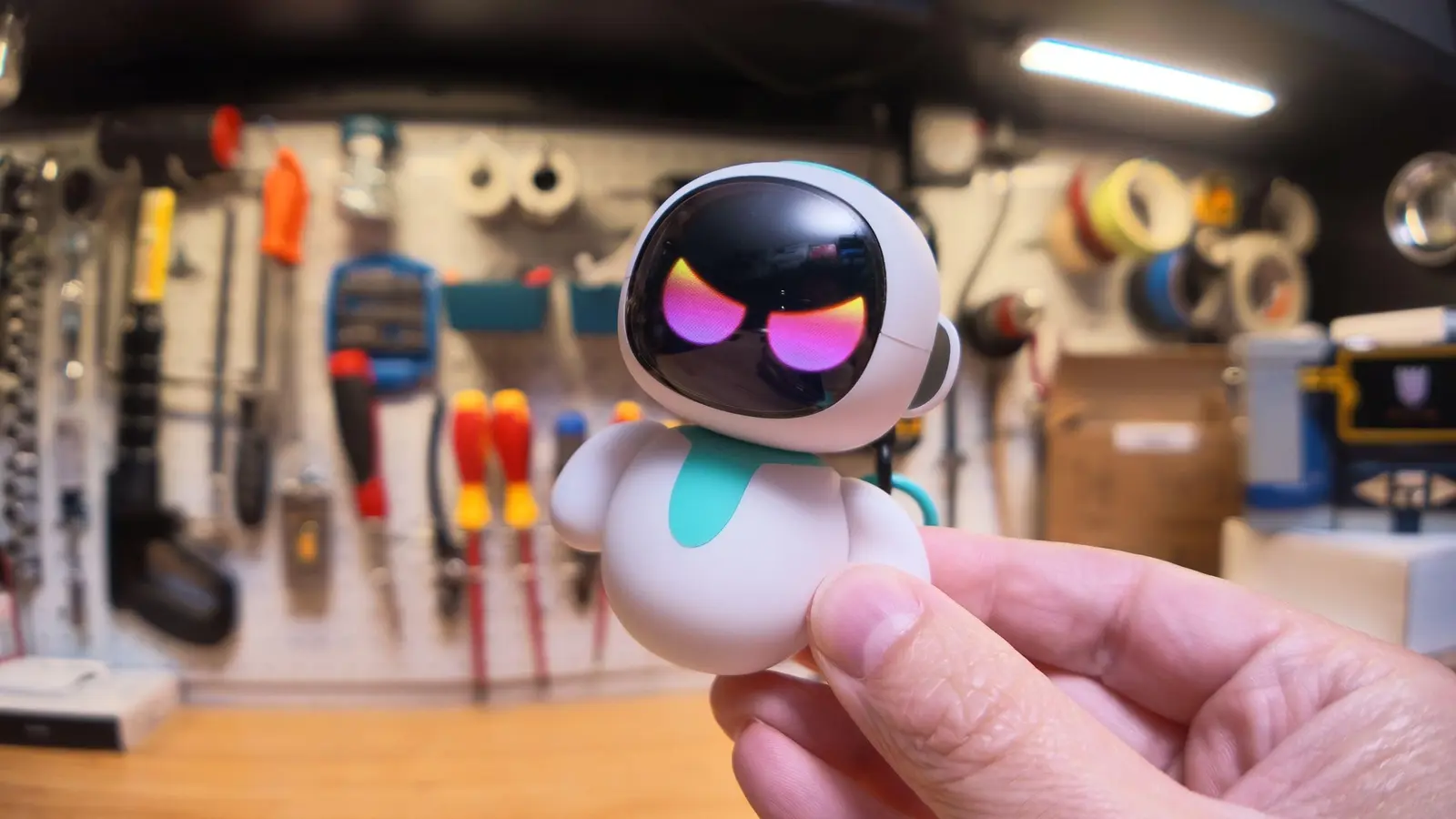 Eiliko Creator Hires Independent Security Firm After Flawy Robot Charm Exposed
 Musk Compares Optimus Robot Training to Raising a Toddler
 Atari VCS Software Store Closes in February 2027
The core problem stems from the Tensor G3 chip's continuous operation of machine learning models that monitor user behavior even when the screen is off. These processes, part of Google's Private Compute Core, remain active to support features such as Now Playing and adaptive battery management. However, recent software updates have inadvertently increased their frequency, leading to noticeable battery depletion overnight or during light usage. Users have reported losing up to 20% of charge per hour in standby mode, a significant deviation from typical performance.
To confirm if background AI is the culprit, navigate to Settings > Battery > Battery Usage and look for Android Systemor Device Health Servicesshowing unusually high consumption. If these entries exceed 15% of total usage despite minimal interaction, background AI processes are likely overactive. Enabling Developer Options and checking running services under Machine Learningcan further reveal persistent modules like Personalization Servicesor Contextual Awarenessconsuming resources.
What Steps Can You Take to Reduce the Impact?
The fix involves adjusting two key settings within the Pixel's system menu. First, go to Settings > Privacy > Activity Controls and toggle off Web & App Activityand Location Historyto limit data collection that fuels background learning. Second, visit Settings > System > Languages & input > On-device speech recognition and disable Always listen for ' Hey Google'if voice activation is not essential. These changes reduce the workload on the Tensor G3's AI cores without disabling core functionality.
After applying these adjustments, users should monitor battery performance for 24 hours. Most report a return to normal drain rates, with standby loss dropping below 5% per hour. Google has acknowledged the issue internally and is reportedly testing a patch that would optimize AI scheduling during low-power states, though no public timeline has been shared.
Frequently Asked Questions
Will disabling these settings affect Google Assistant or Now Playing? Turning off Always listen for ' Hey Google'disables hands-free activation, but you can still use Assistant by pressing the power button. Now Playing may experience slight delays in song recognition but will continue to function using cached models.
Is this issue exclusive to Pixel 8 and Pixel 8 Pro models? No, reports indicate similar behavior on Pixel 7 and Pixel 7a devices, suggesting the problem relates to software updates rather than hardware-specific flaws in the Tensor G3 chip.
Should I factory reset my phone to fix the battery drain? A factory reset is unnecessary and unlikely to resolve the issue, as the drain is tied to active system settings and background processes that would reappear after restoration. Adjusting the privacy and speech recognition settings offers a faster, more effective solution.
Comments
Leave a comment