How the Feature Works and Where It Saves
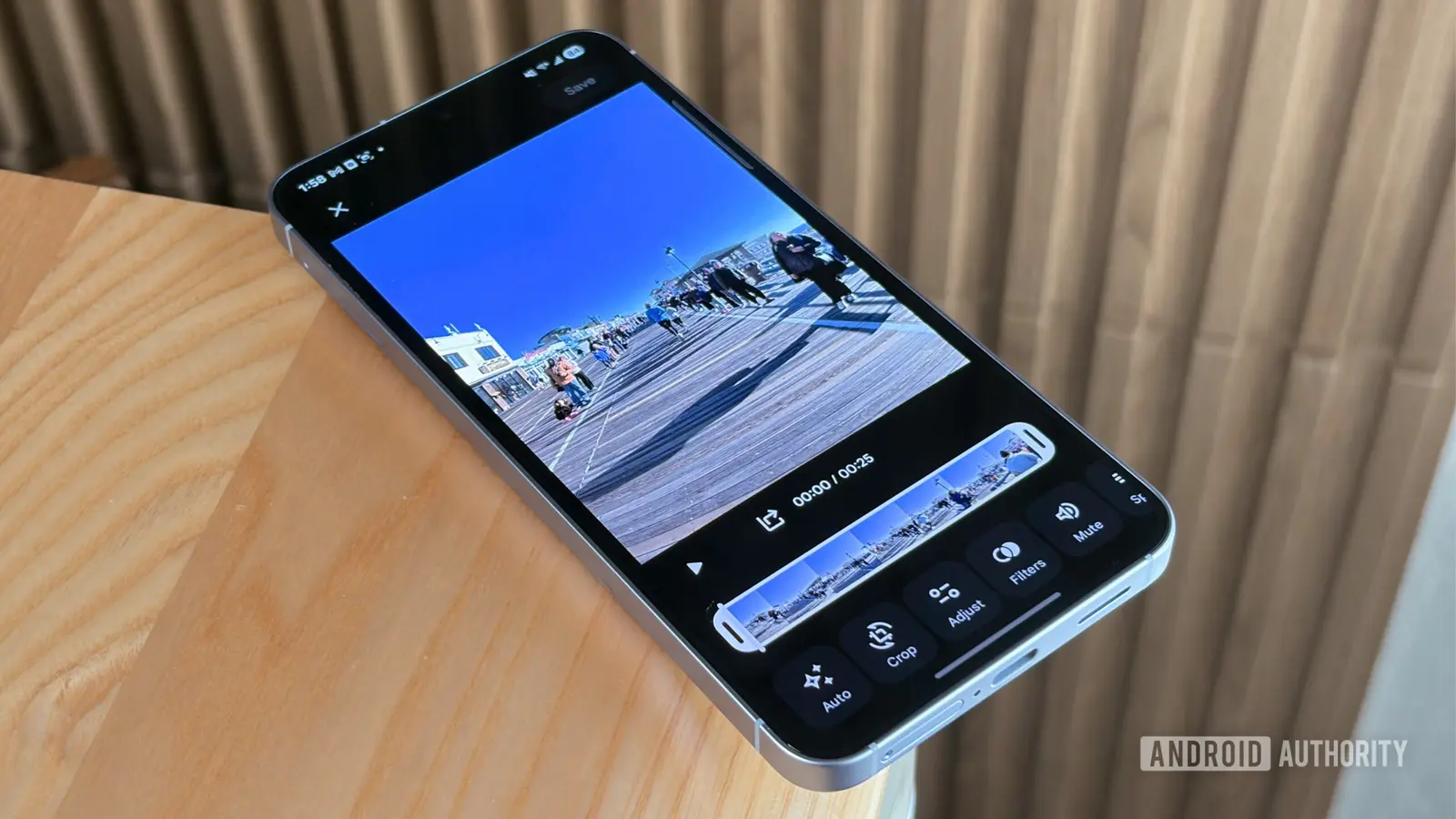
Google Photos has introduced a new quick‑edit button that lets users start editing videos with a single tap. The feature appears in the bottom right corner of the video preview when users choose to share a clip. It works on both Android and iOS devices, allowing users to trim, crop, adjust brightness, and add filters without leaving the app.
Latest news
 Anthropic Unveils Claude Duet For Background AI Tasks
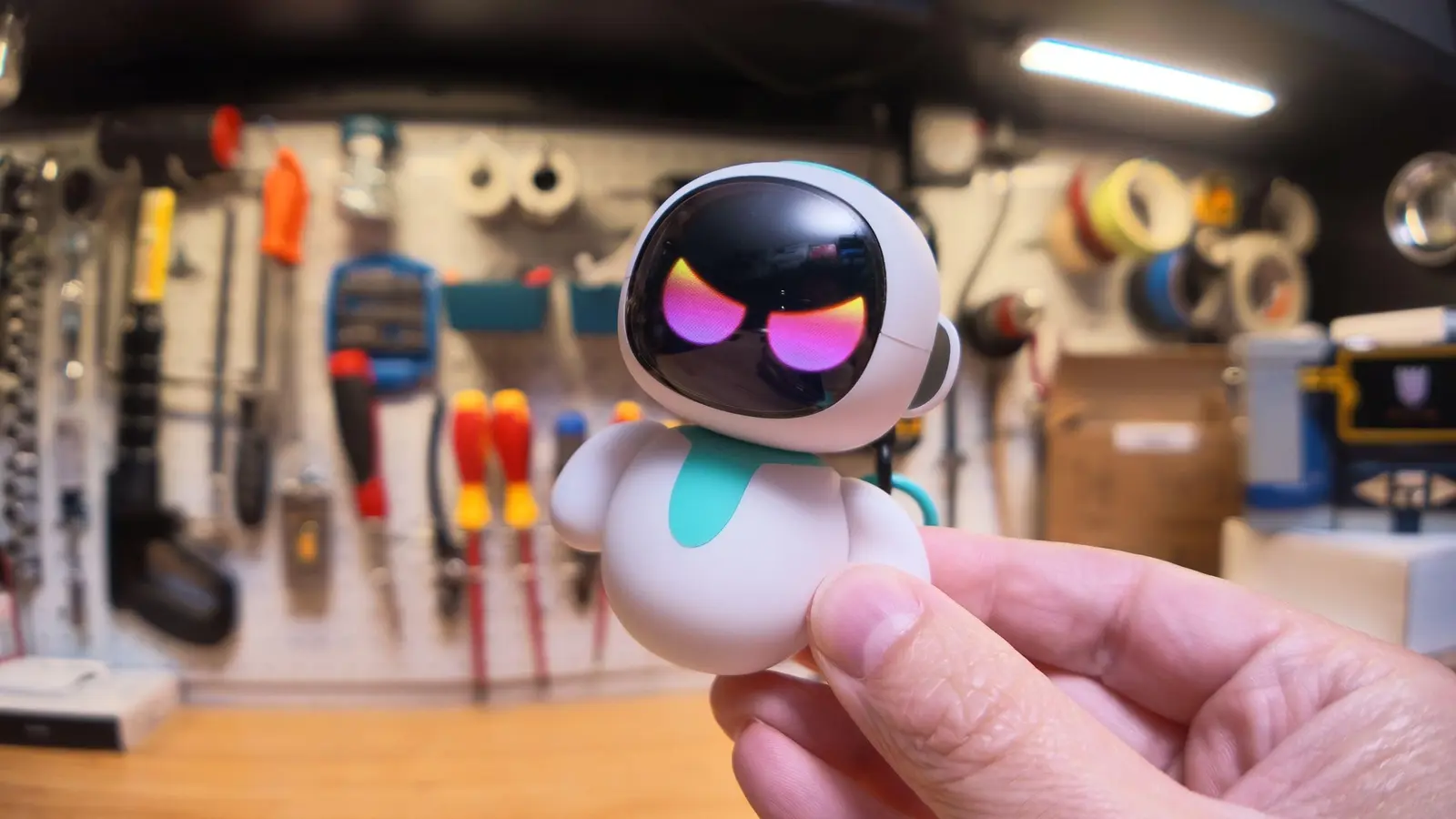 Eiliko Creator Hires Independent Security Firm After Flawy Robot Charm Exposed
 Musk Compares Optimus Robot Training to Raising a Toddler
 Atari VCS Software Store Closes in February 2027
The new button is a response to growing demand for fast video editing tools. Users often share short clips on social media and want a quick way to polish them before posting. The quick‑edit option for photos has existed for years, but videos required a separate, more complex workflow. Now, the same button that opens the photo editor can be used for videos, streamlining the process and reducing the number of steps needed to create a polished clip.
When a user taps the new button, the video opens in a simple editing interface. The editor offers basic tools: trim, crop, rotate, and apply filters. Unlike photo edits, which are saved as a new file, video edits are stored directly in the user’s device storage. This means the original video remains untouched, and the edited version occupies additional space. The app also provides an option to overwrite the original clip if the user prefers a smaller storage footprint.
Why Google Chose a One‑Tap Solution
The feature is available in the same location as the photo quick‑edit button, making it easy for users to discover. It appears only when a video is being shared, so it does not clutter the main gallery view. Users can also access the full editor by tapping the „Edit” icon in the video’s detail screen, which offers more advanced tools such as color correction and audio adjustments.
Google’s design team emphasized the importance of speed and simplicity. „Our goal is to let people edit videos in seconds, without having to learn a complex interface,” said a spokesperson. The new button also aligns with Google Photos’ broader strategy of integrating AI features, such as automatic scene detection and suggested edits. By offering a quick‑edit option, Google encourages users to spend more time creating content within the app, potentially increasing engagement and retention.
The decision to store edited videos in device storage reflects a trade‑off between convenience and space. „We wanted to give users a fast, accessible tool, but we also recognize that storage is a concern for many,” the spokesperson added. Future updates may allow users to choose whether to keep the original or overwrite it.
What This Means for Everyday Users
The one‑tap video editor makes it easier for casual creators to produce shareable content. Fans of short‑form videos on platforms like TikTok and Instagram can now polish clips directly from their phone without opening a separate app. The feature also benefits users who want to quickly trim a video before sending it via messaging apps.
However, the storage requirement could be problematic for devices with limited space. Users who edit many videos may find their internal storage filling up faster. Google may address this by offering cloud‑based editing in future releases. For now, the quick‑edit button is a welcome addition that brings video editing closer to the photo editing experience, simplifying the creative process for millions of users.
Frequently Asked Questions
Does the quick‑edit button work on all devices? Yes, the feature is available on both Android and iOS versions of Google Photos, though the exact placement of the button may vary slightly between platforms.
Will my original video be lost after editing? No. The edited video is saved as a new file in your device storage, while the original remains unchanged unless you choose to overwrite it.
Can I use the full editor after the quick‑edit? Yes. After using the one‑tap editor, you can tap the „Edit” icon in the video’s detail screen for more advanced editing options, such as color grading and audio adjustments.
Comments
Leave a comment