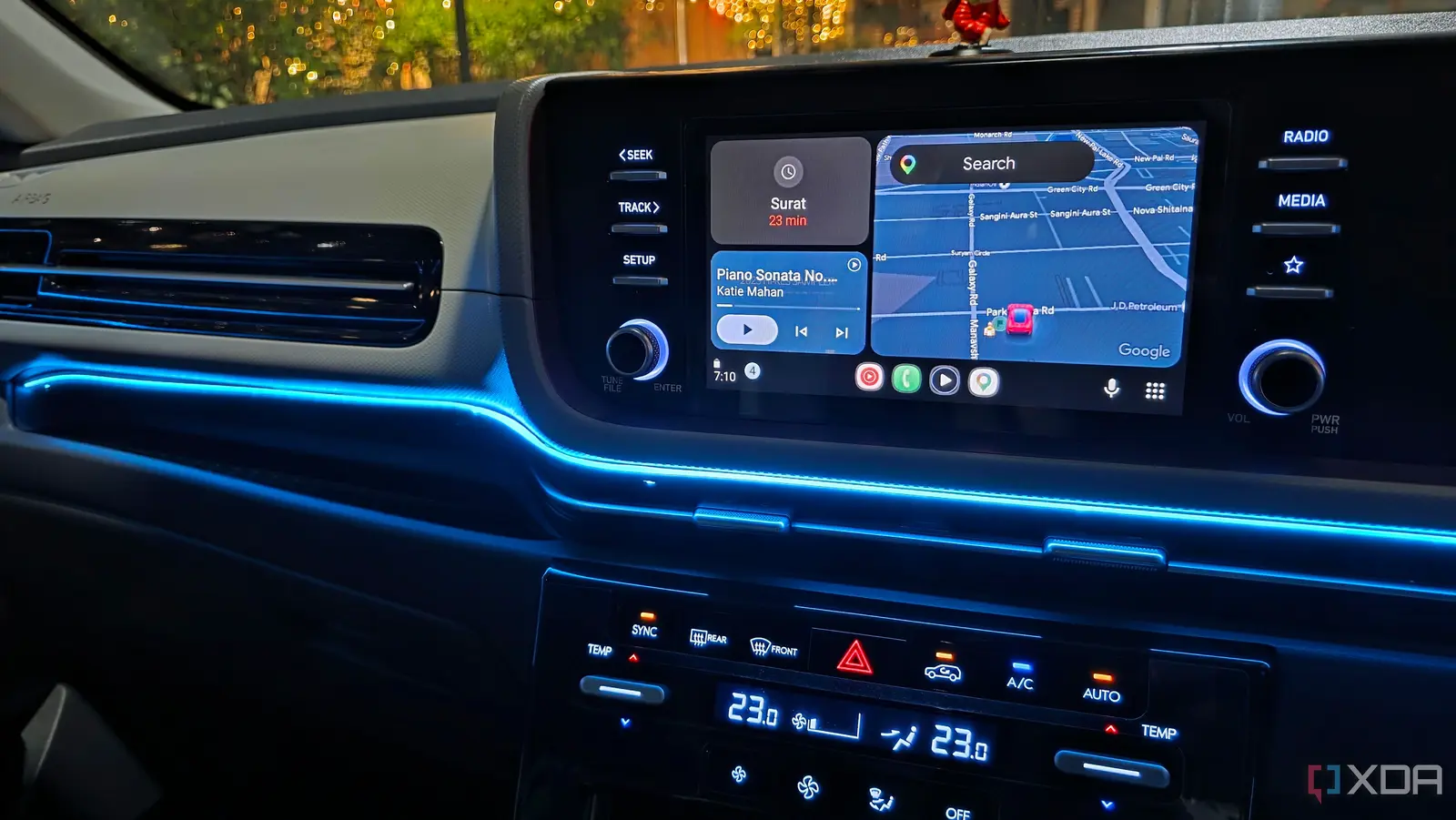
Turning Off Background Data and Power Management
A recent experiment by tech journalist Parth Shah revealed that turning off a handful of Android settings can transform a flaky wireless Auto experience into one that rivals a wired connection. The test was conducted on a 2026‑model Android smartphone paired with a 2024‑model infotainment system in a mid‑size sedan. Results showed a dramatic drop in latency and a 95 % reduction in dropped audio streams during a 30‑minute drive.
Latest news
 The iPhone Duo Reimagines Smartphone Navigation
 Improper Redaction Exposes Google Data Center Resource Use in Lincoln
 I fed my messy Obsidian notes to Claude Code and it finally organized my digital brain
 Your Wi‑Fi Performance Is Suffering From a Simple Mistake
The core issue Shah identified was the way Android manages background data and power for the Auto app. By default, the operating system allows the app to use cellular data for updates, to keep the GPS alive, and to maintain a background service that can wake the phone at any time. These features, while convenient for general use, interfere with the low‑latency, Wi‑Fi‑direct connection that Auto relies on for media, navigation, and voice commands.
Does Wireless Auto Need a Wired Backup?
Shah disabled background data for the Android Auto app through Settings > Apps > Android Auto > Data usage. He also turned off „Battery optimization” for the same app, ensuring it could run uninterrupted. Additionally, he disabled the „Keep Wi‑Fi on during sleep” option to prevent the phone from switching to a low‑power Wi‑Fi mode when the screen was off. After these changes, the phone maintained a stable 5 GHz Wi‑Fi‑direct channel with the car, and the Auto interface responded within 150 ms on average—comparable to a wired USB connection.
„Power saving features are great for battery life, but they’re a nightmare for real‑time streaming,” Shah noted. „When the phone drops to a deep sleep state, the car’s display freezes and voice commands fail.”
What Happens When You Re‑enable the Settings?
The experiment also involved disabling automatic app updates for Android Auto. By preventing the system from downloading new versions during a drive, the phone avoided sudden background downloads that could hog bandwidth and CPU cycles.
A key question for many drivers is whether a wired connection is still necessary after these tweaks. Shah’s data suggest that for most everyday use—music, navigation, and voice control—a wireless connection can be as dependable as a USB cable. He tested a 20‑minute trip that included a sudden change in traffic conditions. The wireless link stayed stable, and the car’s navigation recalculated routes without delay. Only when the phone was placed in a low‑power „Do Not Disturb” mode did the connection falter, indicating that some level of user intervention is still required.
Future updates to Android and Auto may introduce smarter power management, but until then, drivers can manually adjust settings to keep the connection alive. Shah recommends setting the phone to „Always on” for Wi‑Fi and disabling „Adaptive battery” for the Auto app.
Frequently Asked Questions
Re‑enabling background data or battery optimization quickly reintroduces the latency spikes Shah observed. In his test, the phone began dropping frames every 5–10 seconds, causing the car’s display to flicker and voice prompts to miss. This demonstrates that the default Android configuration is not optimized for the real‑time demands of car infotainment.
Manufacturers may address these issues in future firmware releases, but for now, drivers who rely on a wireless Auto connection should consider the adjustments Shah outlined. The trade‑off is a modest increase in battery drain, which can be mitigated by using a high‑capacity USB charger or a power bank while driving.
Comments
Leave a comment