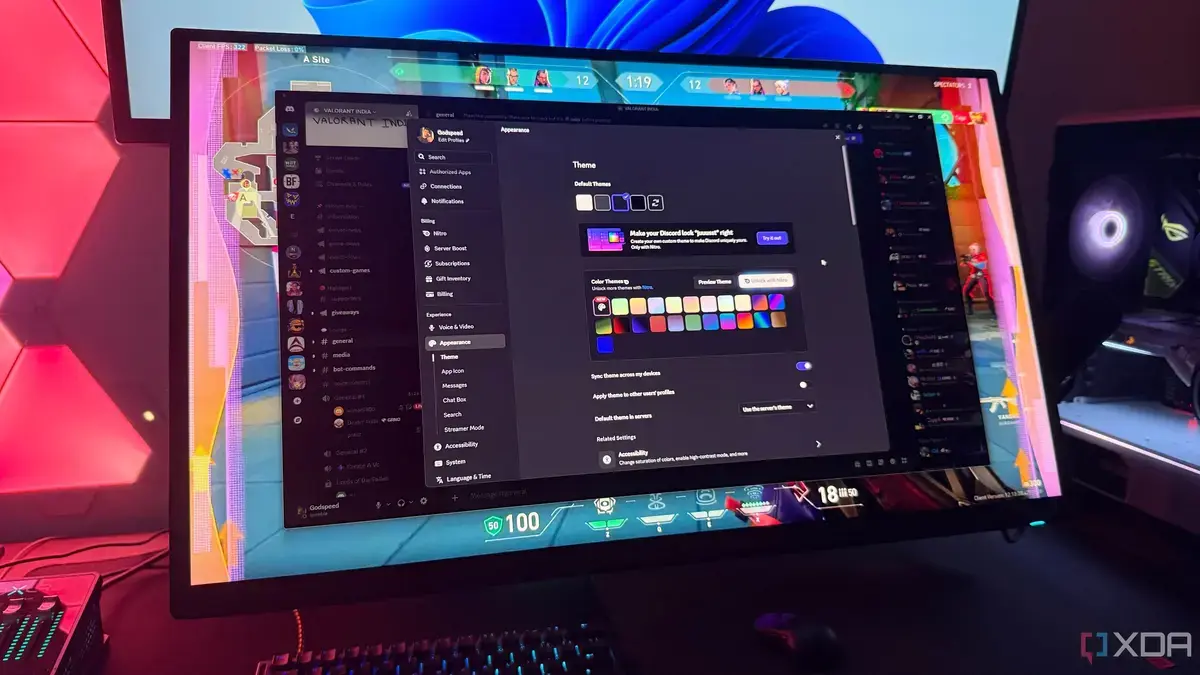
Reclaiming GPU Power from Discord
Gamers often struggle with applications consuming valuable system resources during play. Discord, a popular communication platform, can sometimes hog GPU power. Adjusting specific settings within Discord can significantly free up these resources. This optimization ensures smoother gameplay and a better overall experience for users.
Latest news
 Why Meta's New AI Tool Fails to Win Over Daily Users
 Assessing Risks in Open-Source Artificial Intelligence
 Autonomous AI Agents Launch Cyberattacks Against North American Government Portals
 Warlock Group Targets SharePoint Servers in Critical Infrastructure
Many users are unaware that Discord, while running in the background, might be using more of their computer's graphics processing unit (GPU) than necessary. This can lead to frame rate drops and slower performance in demanding games. Simple changes to Discord's configuration can resolve these issues.
How Can Background Processes Impact Gaming?
One crucial setting to review is hardware acceleration. Discord uses this feature to improve its own performance, but it can divert GPU resources from games. Disabling hardware acceleration often leads to a noticeable improvement in gaming performance. This setting is found within Discord's advanced user settings.
Another area to check is Discord's overlay feature. While convenient for quick access to chat, the in-game overlay can consume significant GPU power. Turning off this overlay entirely can provide a performance boost. This option is located under the Game Overlaysection in user settings.
# What is hardware acceleration in Discord?
Background applications, like Discord, continuously run operations that demand CPU and GPU cycles. Even when minimized, they can still consume power. This constant drain can reduce the resources available for your primary game. Consequently, games might experience stuttering, lower frame rates, or longer loading times.
# Why should I turn off the in-game overlay?
Disabling unnecessary visual effects within Discord can also help. Features like animated emojis or custom statuses, while minor, contribute to resource usage. Streamer Mode is another useful tool; it automatically disables many resource-intensive features when activated. This ensures that your system prioritizes the game.
Hardware acceleration allows Discord to use your computer's GPU to render its interface more smoothly. While it can enhance Discord's responsiveness, it may also divert GPU resources that your games need. Disabling it can free up these resources for gaming.
# Does Streamer Mode help with performance?
The in-game overlay provides quick access to Discord features without leaving your game. However, rendering this overlay requires GPU power. Disabling it ensures that all available GPU resources are dedicated to running your game, potentially improving performance.
Yes, Streamer Mode in Discord is designed to optimize performance, especially during gaming or streaming. It automatically disables various resource-intensive features and notifications, reducing Discord's impact on your system's CPU and GPU.
Comments
Leave a comment