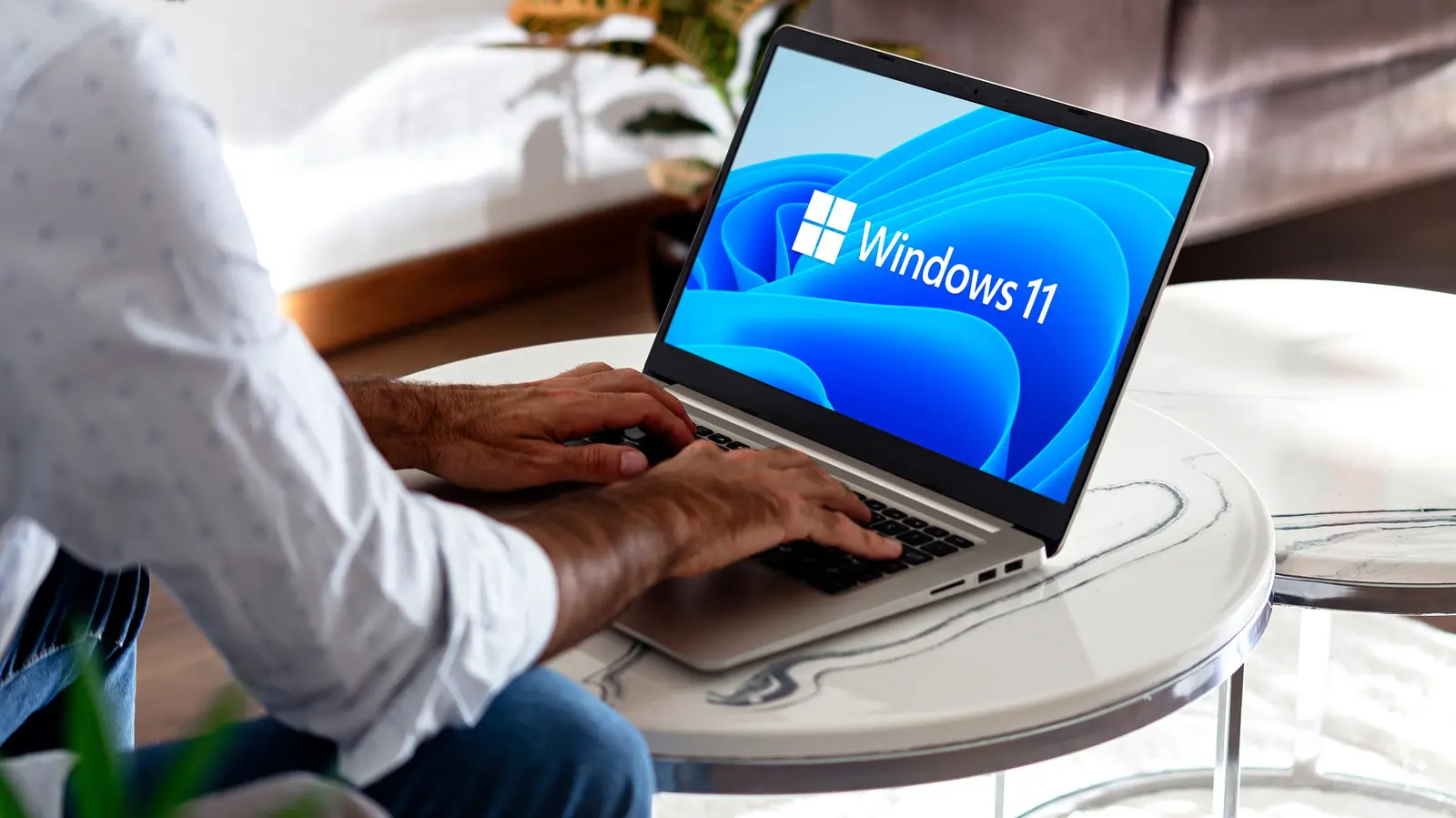
Tweak Power Settings for Longer Runtime
Windows laptop users often struggle with short battery life, especially when mobile. The device drains quickly away from power outlets, prompting the need for simple system tweaks that can extend runtime without hardware changes. These adjustments are easy to apply and require no technical expertise.
Latest news
 Why the Rumored iPhone Duo Excites Android Foldable Fans
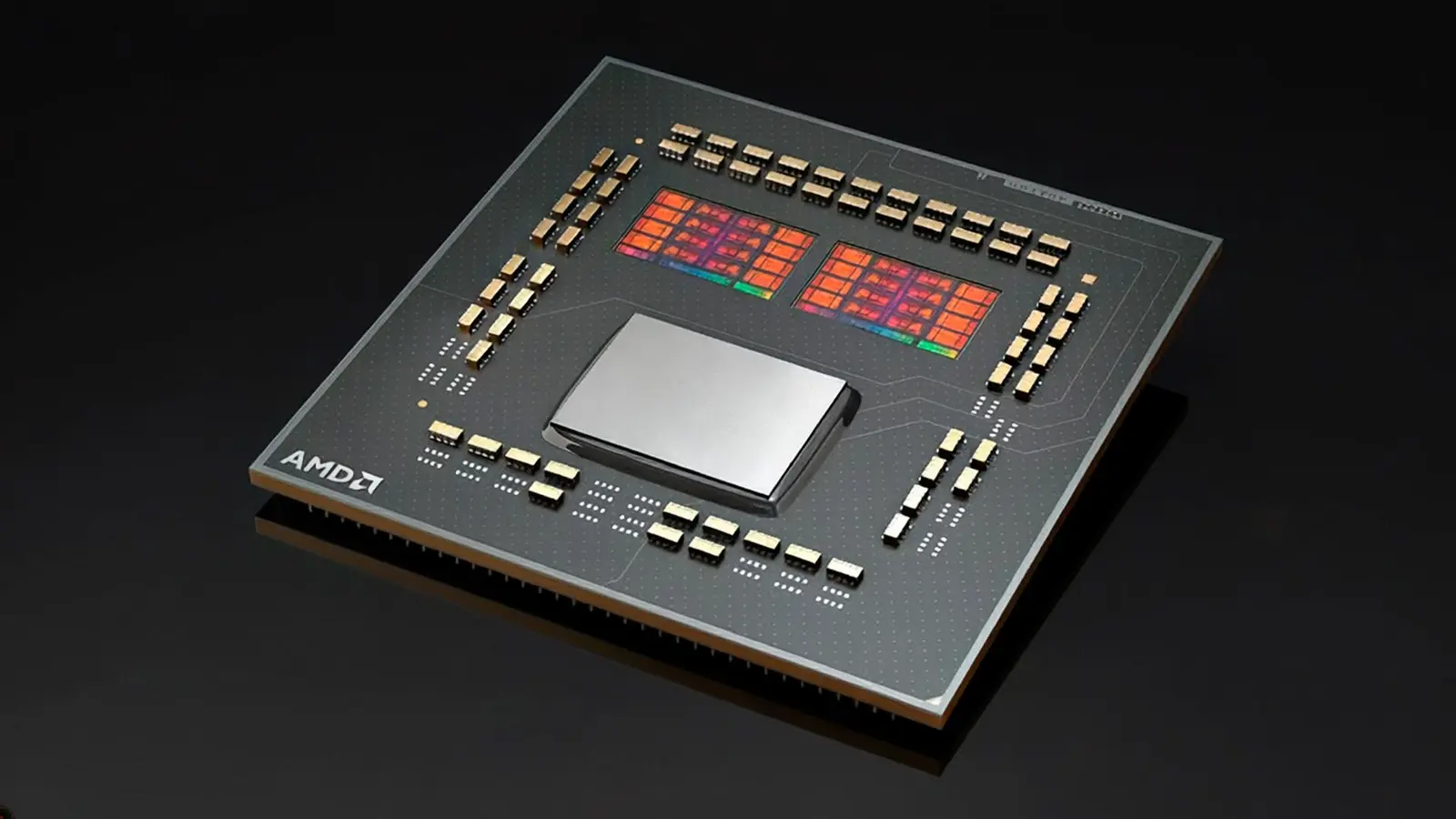 AMD's Canceled Ryzen 9 5900X3D Leaks Online
 California Subpoenas OpenAI Over Autonomous AI Hacking Risks
 Nvidia-Backed UK Supercomputer Faces Multi-Year Power Delay
Adjusting the power plan to a balanced or power‑saving mode reduces unnecessary processor load, while lowering screen brightness cuts display power draw. Disabling background apps and limiting startup programs prevents them from running silently in the background. Turning off Wi‑Fi and Bluetooth when not in use, and setting the sleep timer to a shorter interval, also conserves energy. These changes require only a few clicks in the Settings menu and can noticeably lengthen each charge.
Open Settings, go to System, then Power & battery. Choose the Best power efficiency option or create a custom plan that limits maximum processor speed. Users who switch report up to an extra half hour of usage during typical work sessions.
Can Reducing Background Processes Boost Battery?
Background processes such as automatic updates, cloud sync services, and high‑frequency location checks consume CPU cycles and keep the network active, draining the battery faster. Disabling these services in the privacy and app settings, or using the Task Manager to end unnecessary tasks, reduces this hidden consumption. Even a modest cut in background activity can add several minutes to the overall runtime.
Improved battery endurance lets users work longer without hunting for an outlet, supporting remote work and travel. As Windows updates introduce more efficient power management, the impact of these manual tweaks may diminish, but the basic principles will remain useful for extending charge life.
Frequently Asked Questions
How do I find the power settings on my Windows laptop? Open the Start menu, select Settings, then go to System and choose Power & battery. You can also access it via the quick settings panel on the taskbar.
Will lowering screen brightness harm display quality? Reducing brightness a modest amount improves battery life without noticeable loss in image clarity. Most users find a setting between 50 and 70 percent of maximum provides the best balance.
Can I revert these changes if I notice issues? Yes, simply reset the power plan to default or re‑enable the disabled services. The adjustments are reversible and will not affect system stability.
Comments
Leave a comment