
Why Disabled Apps Keep Coming Back
A user discovered that many Windows applications create multiple startup triggers. This behavior explains why disabled apps keep launching at boot. The issue stems from redundant registry keys and scheduled tasks. Users can fix this by checking all startup locations.
Latest news
 Smart TVs frequently lose their Wi-Fi connection, leaving viewers staring at a spinning loading icon
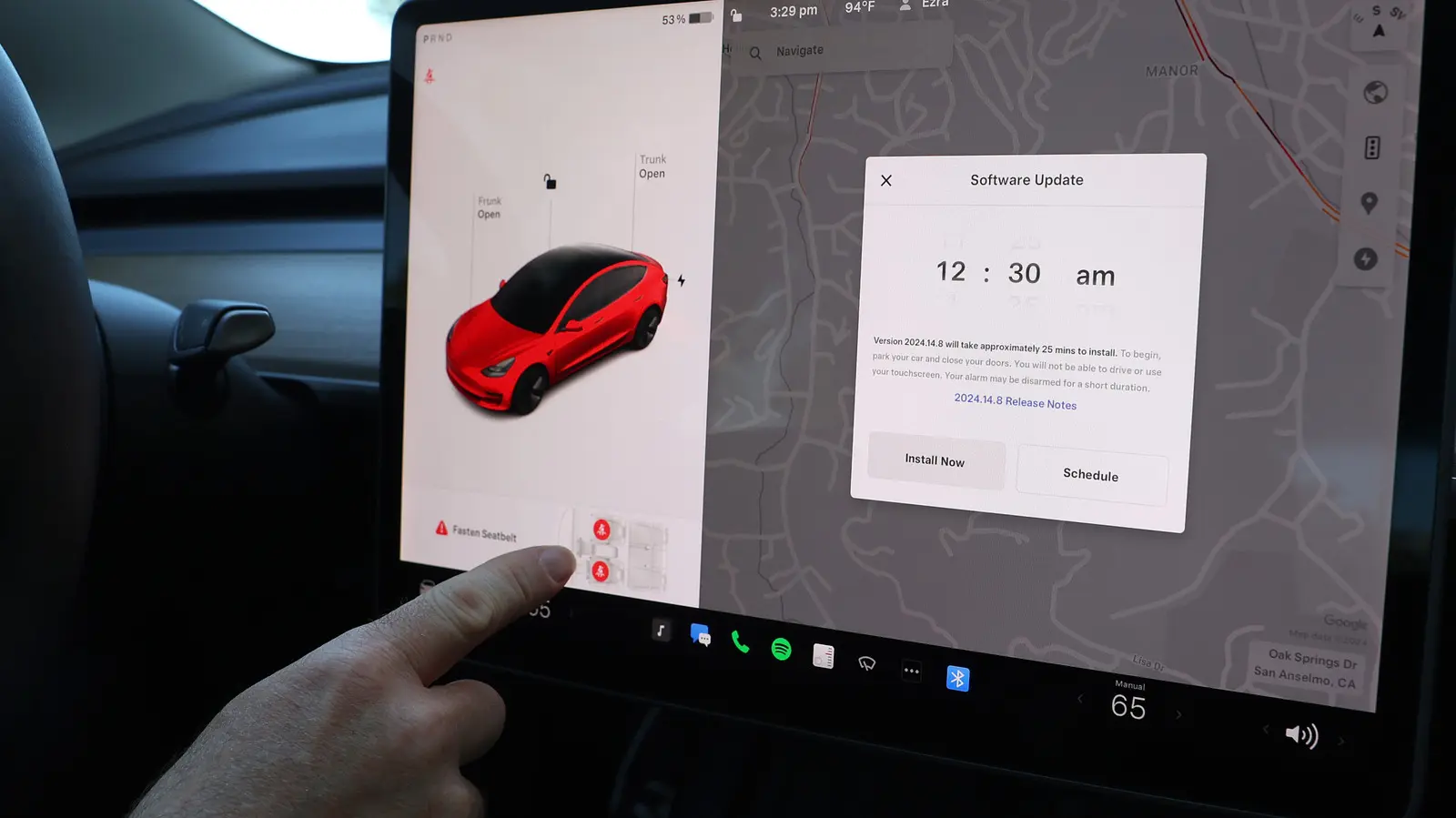 Why Ignoring Car Software Updates Is Risky
 Apple's foldable iPhone Duo introduces dual-display multitasking capabilities
 FCC Weighs Reciprocal Limits on Foreign Satellite Firms
How to Find Every Startup Trigger
Windows provides several ways for software to start automatically. Task Manager only shows the most common startup entries. Apps can also register through the registry, scheduled tasks, or shell extensions. Disabling an app in Task Manager may not stop these other triggers. The user found that some programs create more than one startup mechanism. This redundancy ensures the app launches even if one method is blocked. Understanding all possible startup locations is key to solving the problem.
Check the registry under HKCU and HKLM Run keys. Inspect Windows Task Scheduler for app-specific tasks. Review shell extensions and context menu handlers. Use Process Monitor to track which processes start at boot. Compare the list against Task Manager to find hidden triggers. Disable each trigger individually to stop the app from launching.
Frequently Asked Questions
Why does Task Manager not show all startup items? Task Manager displays only standard Run key entries. It does not list scheduled tasks or registry-based triggers. What is the best tool to find hidden startup apps? Process Monitor provides a complete view of boot-time processes. It shows exactly which executable starts and why. How many startup locations should I check? At minimum, check Task Manager, registry Run keys, and Task Scheduler. These three locations cover the vast majority of startup mechanisms.
Comments
Leave a comment