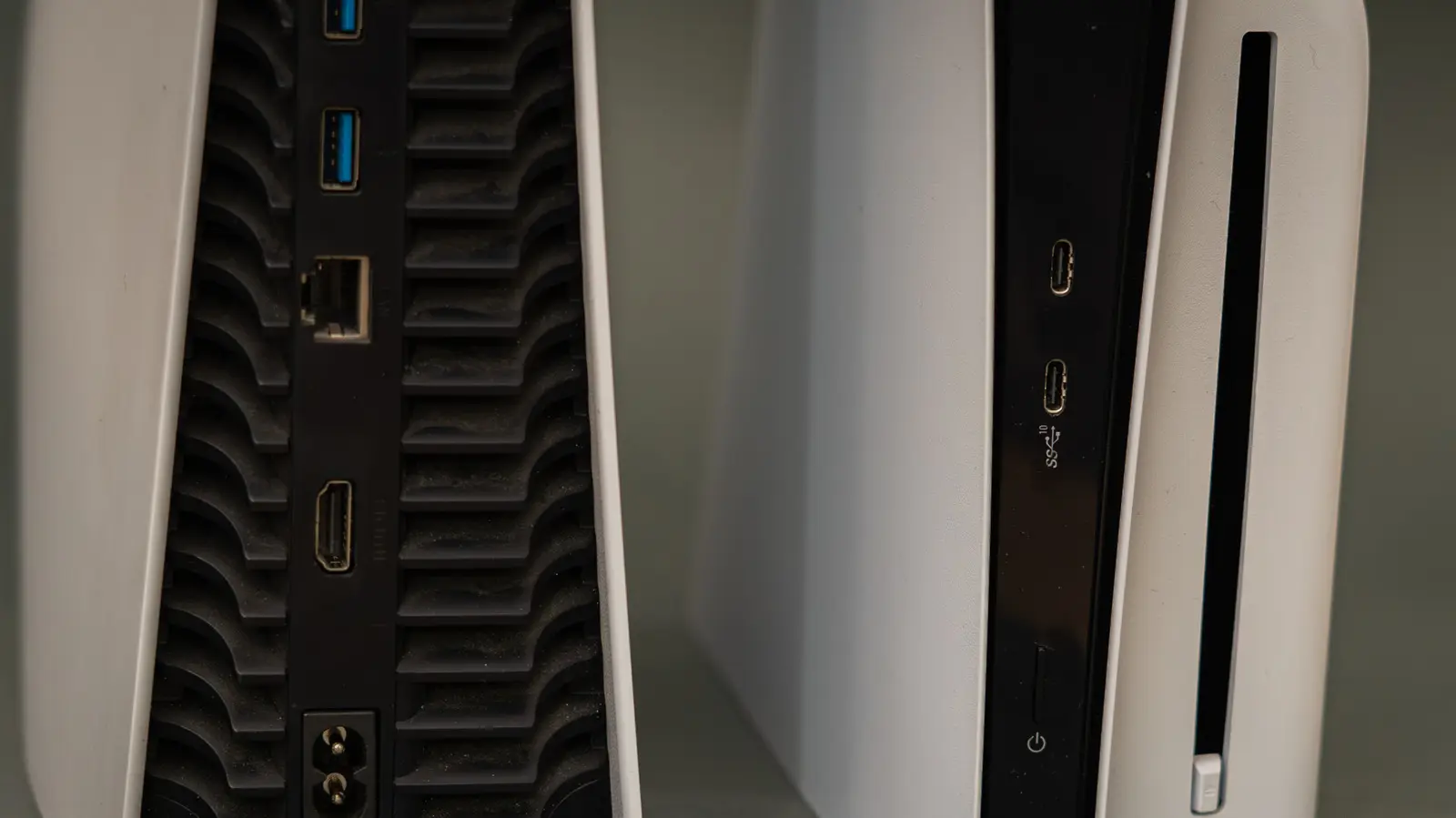
Understanding HDMI 2.1 Requirements
Most modern televisions and monitors feature multiple HDMI inputs, but identifying the correct one can be difficult. Labels are often tiny, poorly placed, or missing entirely. If your display lacks clear markings, you must consult the manufacturer’s technical specifications to identify which ports support the necessary standards.
Latest news
 Steam rolls out Personal Calendar feature that constantly updates recommended games
 SK hynix builds US fab for Solidigm, scraps IPO plans
 PHP-ocalypse: How Two Critical Web Vulnerabilities Nearly Broke the Internet
 Cybersecurity Awareness Week: Why Apple’s Tools Aren’t Enough to Erase Your Data
Cables and Connection Quality
The PS5 utilizes the HDMI 2.1 standard, which enables 4K resolution at 120 Hz refresh rates. To access these features, you need a compatible display and the correct port. Do not assume that port numbering is consistent across different models or brands. Always verify your specific device’s manual to find the HDMI 2.1 input, which is frequently labeled as the third or fourth option.
Unlocking High Refresh Rates
The choice of cable is vital. Sony recommends using the cable included with your PS5 or an Ultra High SpeedHDMI 2.1 cable. Connect this cable directly to your display rather than routing it through soundbars or other intermediary devices. These devices can create bottlenecks that prevent the console and screen from communicating at full capacity.
Using the correct port allows for 120 Hz output, providing smoother motion in supported games. Note that this feature is not always enabled by default. You may need to check your game’s video settings for an „120 Hz modeor ”high frame rateoption. While HDMI 2.0 can handle 120 Hz at lower resolutions like 1080p or 1440p, HDMI 2.1 is essential for 4K at 120 Hz. Remember that most games reduce resolution to maintain high frame rates.
Advanced Features and Settings
HDMI 2.1 also supports Variable Refresh Rate (VRR) to prevent screen tearing and Auto Low Latency Mode (ALLM) to minimize input lag. Do not confuse port numbers like „HDMI 1”or „HDMI 2”with version numbers. Even if a port is HDMI 2.1 capable, you might need to enable „Enhanced Featuresin your TV’s menu. Finally, navigate to your PS5 settings under Screen and Video to ensure resolution, transfer rate, and 120 Hz output are set to ”Automatic.„Check the ”Video Output Informationmenu to confirm your display is correctly configured.
Comments
Leave a comment