Turn Off Always‑On Display and Reduce Brightness
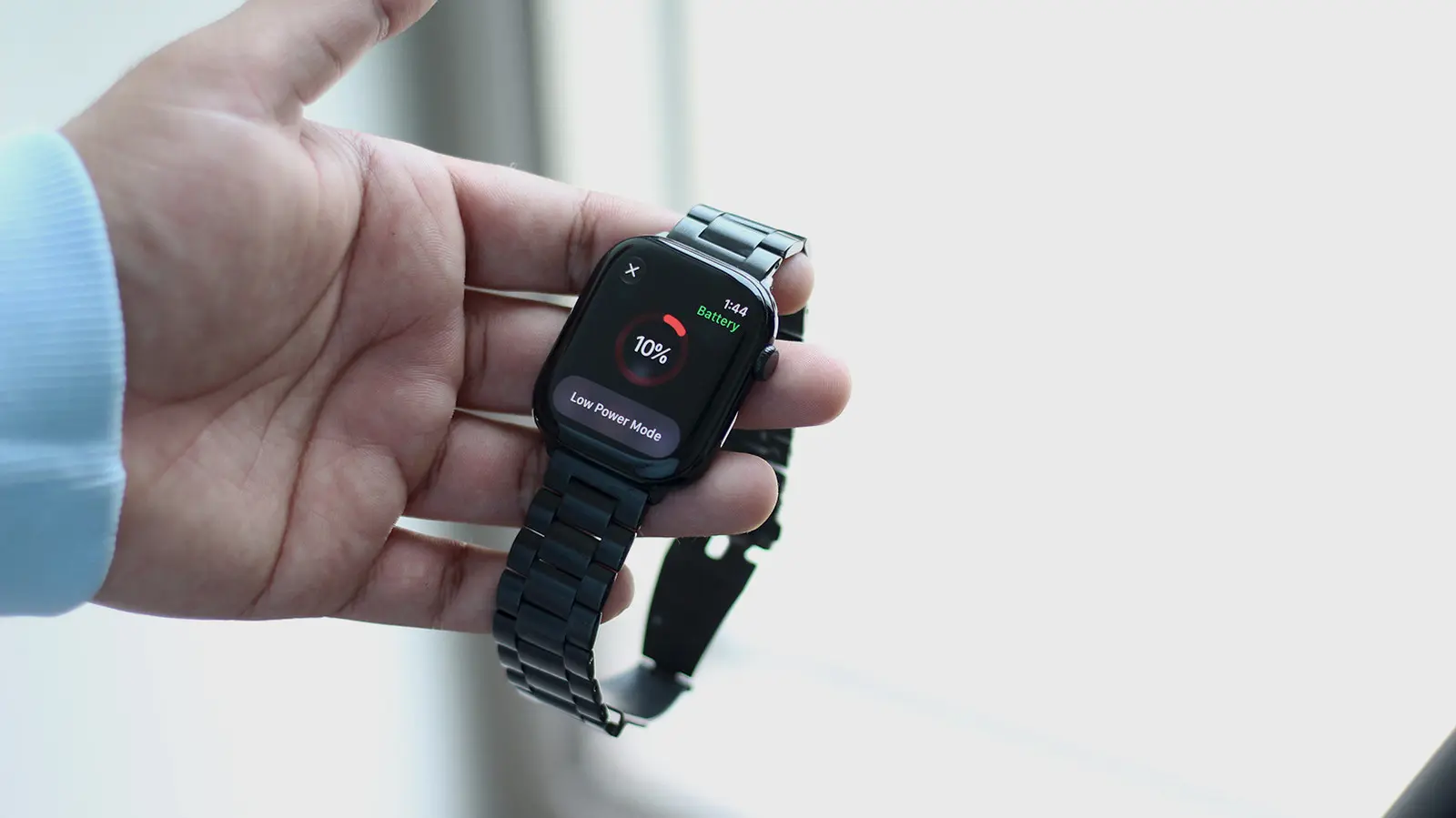
A recent guide outlines five simple adjustments that can extend the Apple Watch’s battery life, allowing users to keep their device running longer throughout the day. The advice targets anyone who relies on the smartwatch for fitness tracking, notifications, or quick replies, and it is applicable to all current Apple Watch models.
Latest news
 Smart TVs frequently lose their Wi-Fi connection, leaving viewers staring at a spinning loading icon
 Why Ignoring Car Software Updates Is Risky
 Apple's foldable iPhone Duo introduces dual-display multitasking capabilities
 FCC Weighs Reciprocal Limits on Foreign Satellite Firms
Disable Unnecessary Notifications
The article explains that each new Apple Watch release brings incremental improvements, yet many users still find the battery drains faster than desired. By disabling or limiting certain features, the watch’s core functions—such as heart‑rate monitoring, GPS, and notifications—continue to operate efficiently, while the more power‑hungry functions are turned off when not needed.
Apple’s Always‑On Display keeps the screen lit for quick glances, but it consumes significant power. The guide recommends turning it off in Settings > Display & Brightness, and lowering the screen brightness to the lowest comfortable level. Users report that this change can add up to an extra hour of battery life per day, especially when the watch is left on the wrist for extended periods.
Manage Fitness Tracking Features
The watch can receive notifications from multiple apps, each of which wakes the screen and draws power. By selectively disabling notifications for less critical apps—such as social media or news feeds—users can reduce screen wake‑ups. The article notes that even a single high‑frequency notification stream can shave several minutes off battery life each day.
Optimize Connectivity Settings
While the watch’s fitness sensors are a major selling point, continuous GPS and heart‑rate monitoring drain the battery. The guide advises turning off background heart‑rate updates in Settings > Privacy > Health, and using the „Workout” app only when actively exercising. Turning off the „Always On” workout tracking feature can save up to 20% of battery consumption during long sessions.
Bluetooth and Wi‑Fi connections keep the watch in sync with the i Phone, but they also use power. The article suggests enabling „Airplane Mode” when the watch is in a low‑signal area or during sleep, and turning off Wi‑Fi in Settings > Wi‑Fi if the user rarely uses it. Additionally, disabling „Hey Siri” can prevent the microphone from listening constantly, further conserving energy.
Use Power‑Saving Modes During Sleep
Apple Watch offers a „Power Reserve” mode that limits functionality to essential features while preserving battery for the next day. The guide recommends activating this mode when the watch is not in use, such as during overnight hours. Users find that this setting keeps the watch alive for an extra day or two, especially when paired with a low‑brightness display and minimal notifications.
How Long Can You Expect the Battery to Last?
By combining these adjustments, many users have reported an increase of 2–4 hours of battery life compared to the default settings. The changes are reversible, so users can experiment to find the right balance between convenience and endurance.
The article poses the question: „Will these tweaks really extend the battery life enough to make a difference?” Test results from several reviewers show that a fully charged Apple Watch can now comfortably last 18–20 hours on a single charge when using the recommended settings, compared to the typical 12–14 hours on stock configuration. This improvement is especially valuable for professionals who rely on the watch for continuous health monitoring and timely alerts.
Frequently Asked Questions
In conclusion, while Apple continues to push hardware and software innovations, users can still take control of their device’s power consumption through thoughtful settings adjustments. These tweaks provide a practical way to keep the Apple Watch running longer, ensuring that the smartwatch remains a reliable companion throughout the day.
Comments
Leave a comment