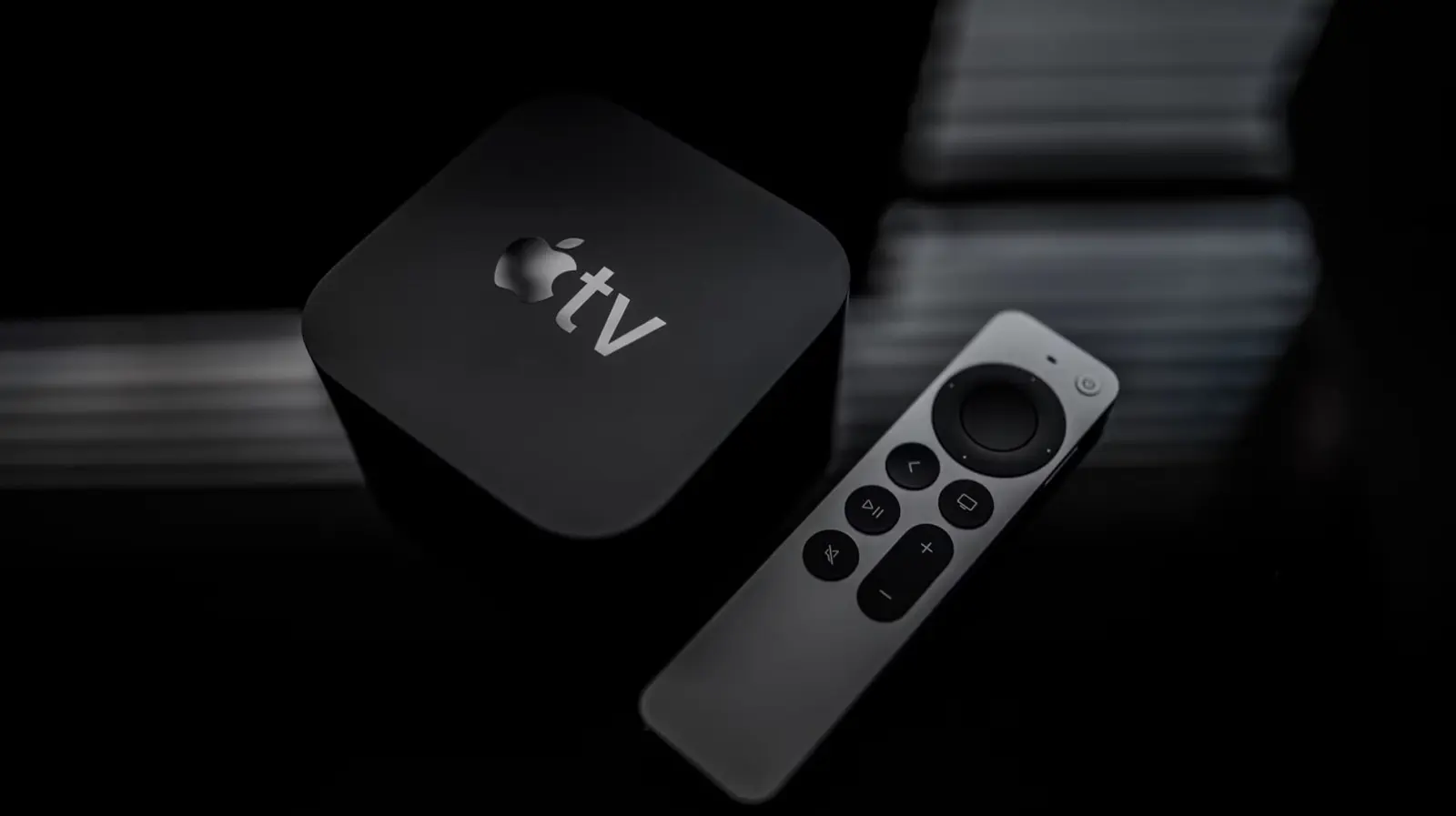
Gesture Controls and Hidden Buttons
The Apple TV remote ships with every Apple TV set-top box, yet many users only use the basic navigation buttons. Apple designed the device with hidden gestures and shortcuts that speed up menu navigation. These features are rarely discovered because they are not prominently advertised.
Latest news
 Smart TVs frequently lose their Wi-Fi connection, leaving viewers staring at a spinning loading icon
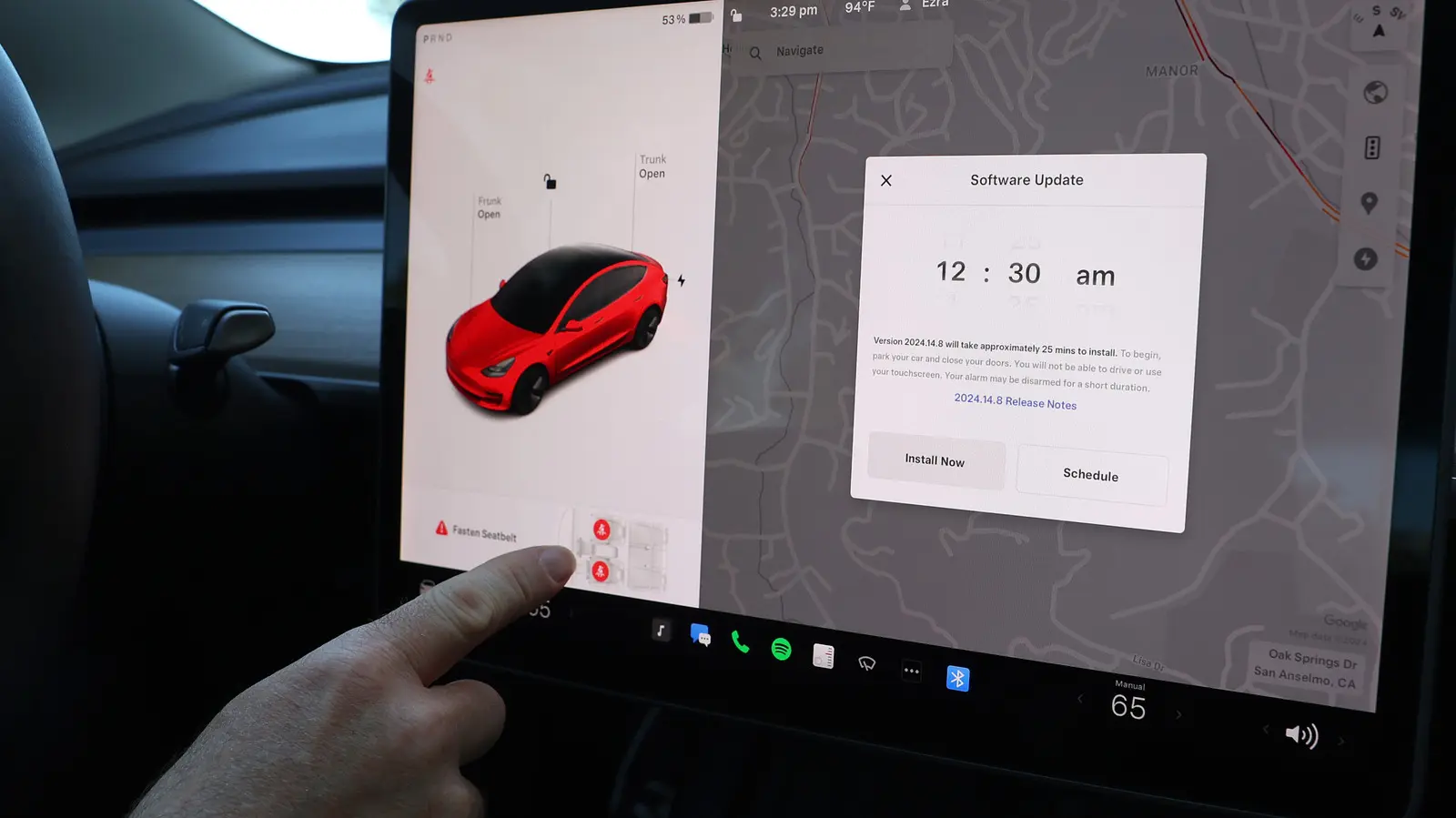 Why Ignoring Car Software Updates Is Risky
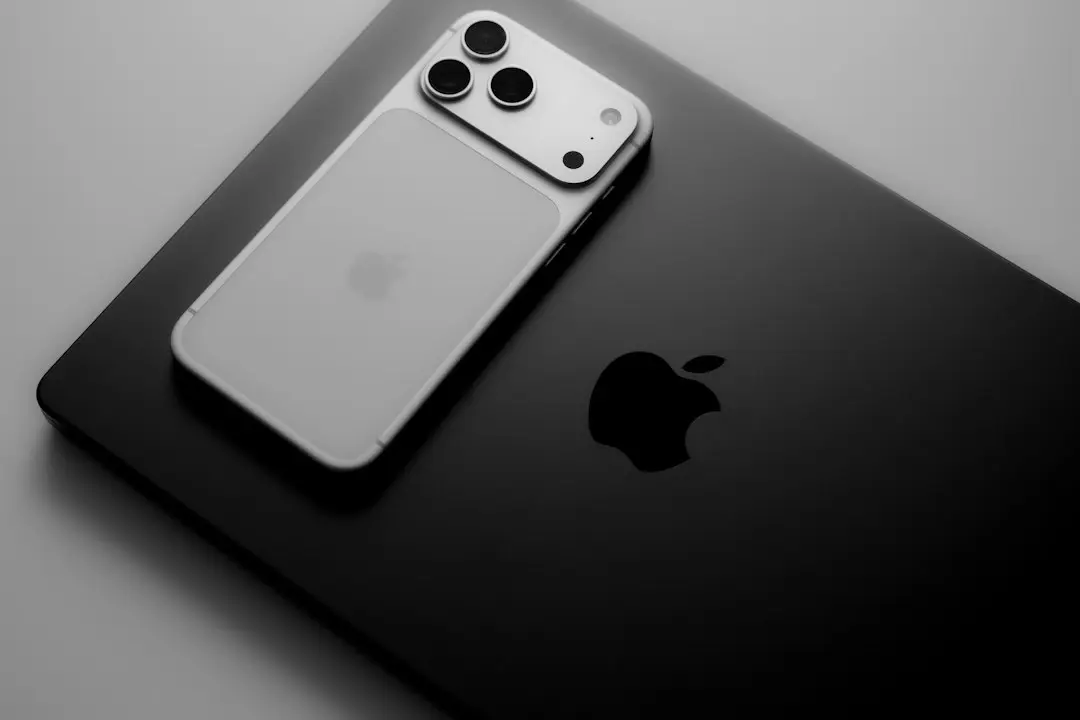 Apple's foldable iPhone Duo introduces dual-display multitasking capabilities
 FCC Weighs Reciprocal Limits on Foreign Satellite Firms
The remote supports several advanced controls that streamline the user experience. Instead of pressing multiple buttons to reach a specific app or setting, users can trigger these shortcuts with a single gesture or button combination. This reduces friction when switching between streaming services or adjusting system preferences.
The remote includes a touch-sensitive surface on top. Users can swipe up, down, left, or right on this pad to move through menus. A long press on the center button opens the app switcher, allowing quick jumps between running applications. The microphone button activates Siri for voice commands, eliminating the need to type search queries manually.
Why Do Most People Miss These Features?
Apple also integrated a dedicated back button on the side of the remote. Pressing it returns the user to the previous screen instantly. This is faster than navigating back through the menu hierarchy. The volume rocker on the side adjusts the TV volume directly, bypassing the need to open the volume slider in the app.
Most users rely on the D-pad and the central button for all navigation. They often do not read the quick-start guide or explore the remote’s physical layout thoroughly. As a result, they miss the touchpad gestures and the side buttons. Apple’s interface does not always highlight these shortcuts on-screen, making them easy to overlook.
Understanding these controls reduces the time spent hunting for settings or switching apps. For households with multiple streaming services, the app switcher and voice search save significant effort. The remote becomes a more efficient tool for daily use.
Frequently Asked Questions
Can the Apple TV remote control a non-Apple TV? No. The remote is designed specifically for Apple TV hardware. It cannot directly control other TV brands’ remotes or functions without additional software or a universal remote setup.
How do I find all available shortcuts? Open the Apple TV app on your i Phone or iPad. Navigate to Settings, then Remote & Pointers. This section lists every gesture and button function available on the device.
Do the shortcuts work in all apps? Most shortcuts work across the Apple TV interface. However, some third-party apps may override certain buttons for their own controls, such as volume or play/pause.
Comments
Leave a comment