Controller management: A solution
Uncovering the hidden functionalities of Nintendo Switch 2: The complete guide for advanced users
Latest news
 Meta's Muse Ember Rivals Claude Haiku at One-Third the Cost
 Meta is using AI to catch teens lying about their age on Instagram
 NymVPN Update 2026.15 Bypasses Network Blocks with Anti-Censorship Bridges
 8849 Tank 5 rugged phone review
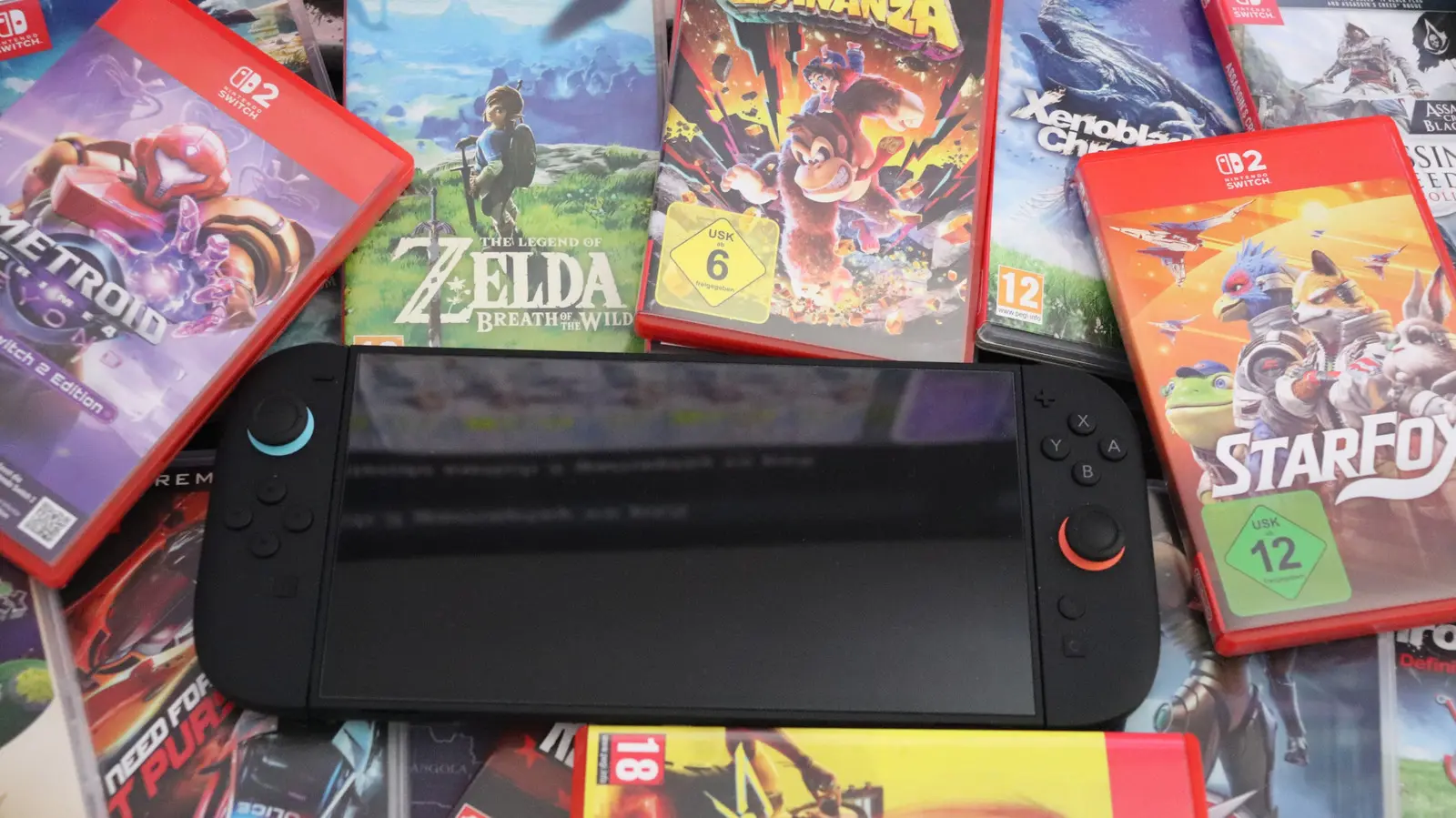
The Nintendo Switch 2 device offers a multitude of technical subtleties and innovative functionality, some retained from its predecessor, and others fully introduced. It is very likely that users will not fully exploit all the capabilities offered by the new console. Usually, people instantly access the games, ignoring the essential settings that ensure optimal system performance.
It is important to note that the Switch 2 is a direct evolution of the original model; the changes to the design, operating system, controllers and other components are refinements, not fundamental changes. This similarity implies that many of the tips and tricks applied on the Switch 1 remain valid on the new console, which may be understandable to those who are experimenting with the series. However, there are subtle improvements that are easy to overlook that are specifically for this younger generation. Whether it's about superior controller ergonomics or reusing existing hardware, these small advantages of the Switch 2 are well worth knowing.
To maximize the experience, try these features before starting the next game session.
Controller management: A solution to losses
The Joy-Con 2 controllers are bulkier than previous versions, but they remain small enough to hide under the couch pillows or disappear under a blanket. If you lose your controller, the console can provide assistance. Go to the Controllers page in the main menu and select the Search Control . All compatible controllers, pre-associated to the system, will appear on the screen. To locate one of them, highlight it and press the L or R button (or use the tactile interface). The moment you hold the button, the controller will emit vibrations and a distinctive sound, making it easier to track. If you can't locate it, try moving closer to the console to get back in range.
Most modern devices, such as laptops, phones
However, there are some important limitations: although the original Switch controllers may seem to be associated with Switch 2, the location function cannot find them. The performance of third-party controllers is also uncertain. This system cannot initiate a call to a non-functioning controller, and tracking does not extend to controllers associated with other consoles.
Optimization of long-term battery health
Most modern devices, such as laptops, phones, and their equivalents, now include an 80% charge limit function (or similar values). The purpose of this functionality is to protect the battery vital over several years, as keeping lithium-ion batteries at maximum capacity (100%) for long periods of time accelerates degradation to lower levels. Switch 2 has the same capability: enter Settings and navigate to the System. Approximately halfway through the list, you'll notice a switch entitled Open Charge in Interest 80-90% . Activation of this option will impose a charge limit on the system when connected to the charging station or in any other mode of charging. For long journeys, it is recommended that you disable this protection to reach a full load. However, in general, especially if the console stays on the base station most of the time, keeping this function active is beneficial.
Also, the option ' System Battery (%) , located next to it, is useful by providing an accurate display of the battery level, rather than a general symbol.
Customization of commands: System level repair
Although many contemporary games offer extensive order setup options, sometimes a more specific adjustment is needed. In such cases, the console allows the buttons to be reset throughout the system. Access Settings and select Accessibility. At the top, select Measure Buttons . If you plan to use this feature frequently, turn it on in Quick Settings; a quick access will appear when you hold the Home button. In this menu, each connected controller is listed on the left side. Select a controller and select Edit Map Controller to view the buttons, being free to reassign most of the inputs to other functions. For example, you can change the functions of the ZR and ZL buttons to those of the R and L buttons, or you can move an inconvenient input onto a button that is easier to touch.
The C button deserves special attention; if you're not using the GameChat feature, you can disable this button to prevent accidental activation. Alternatively, you can turn it into a secondary input for another button, like a direction from the D-pad or pressing one of the sticks. Checking Control Stick Settings allows you to reverse left and right stick
Comments
Leave a comment